Digital nomads need workspaces that move with them and still feel like home. These creative work from home desk ideas focus on gear and setups that help you work all day without pain, stay focused, and stay ready to move. Whether you stay in one place or change cities often, you can build an ergonomic desk setup that supports long sessions at the screen.
Creative Work From Home Desk Ideas That Fit Any Space
A strong work from home desk setup starts with comfort and layout. Think of your desk as a cockpit: every tool within reach, nothing extra in the way. This matters even more when you move between rentals, co-living spaces, and short-term apartments.
Layout Tips for Flexible Home Desks
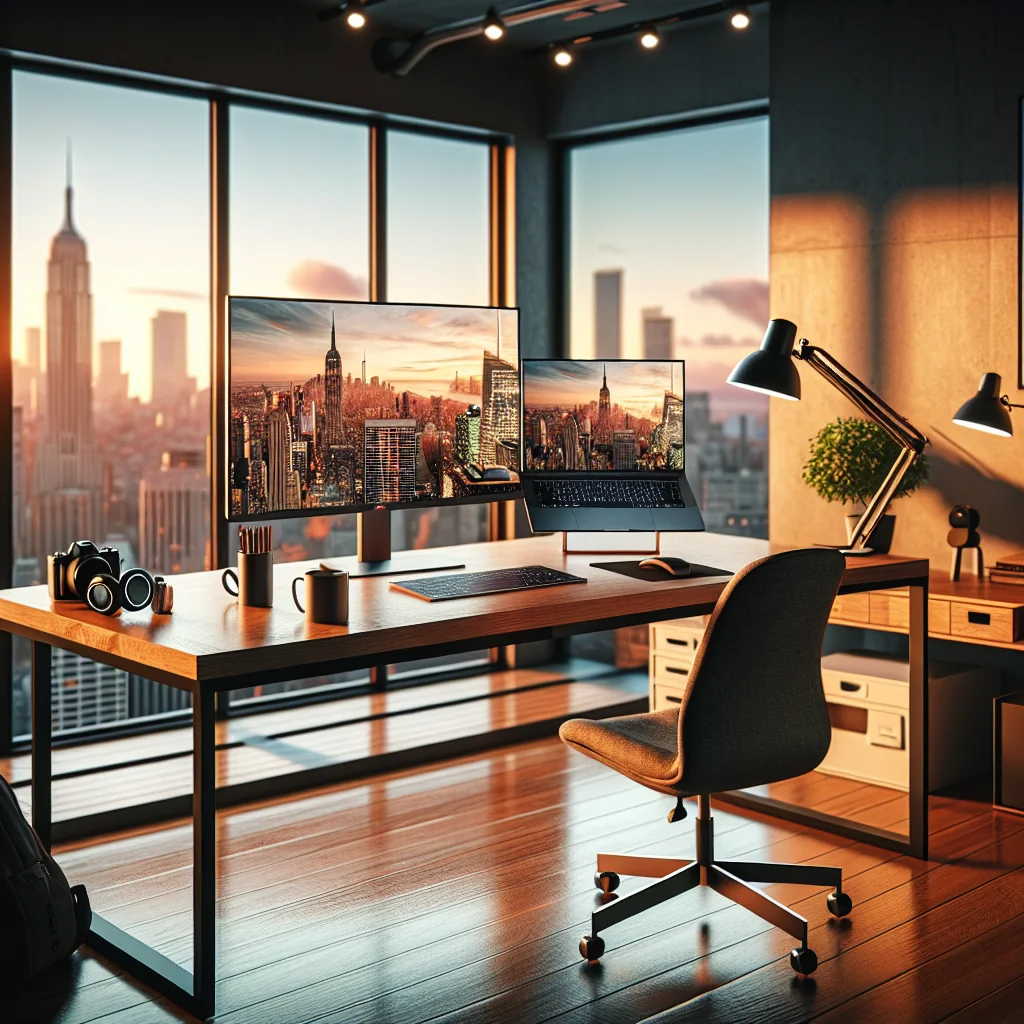
Place your desk where you get natural light from the side, not behind you. Side light reduces glare on your monitors and helps you look better on video calls. If you work in small spaces, choose a compact desk and use the wall for shelves, pegboards, or hooks.
Keep the main work zone clear: laptop, keyboard, mouse, and notebook. Store everything else in a drawer unit, packing cube, or small crate that you can lift and move in seconds. This makes teardown and setup easy when you change locations.
How to Set Up Two Monitors for Remote Work
Setting up two monitors is easier if you follow a clear order. This setup works well in home offices and temporary rentals, and it gives you space for code, design, or calls without constant window shuffling.
Position Your Monitors for Comfort
Start by placing and raising your screens so they feel natural to use. Good positioning reduces neck strain and makes long days less tiring. You want your eyes to move side to side, not up and down.
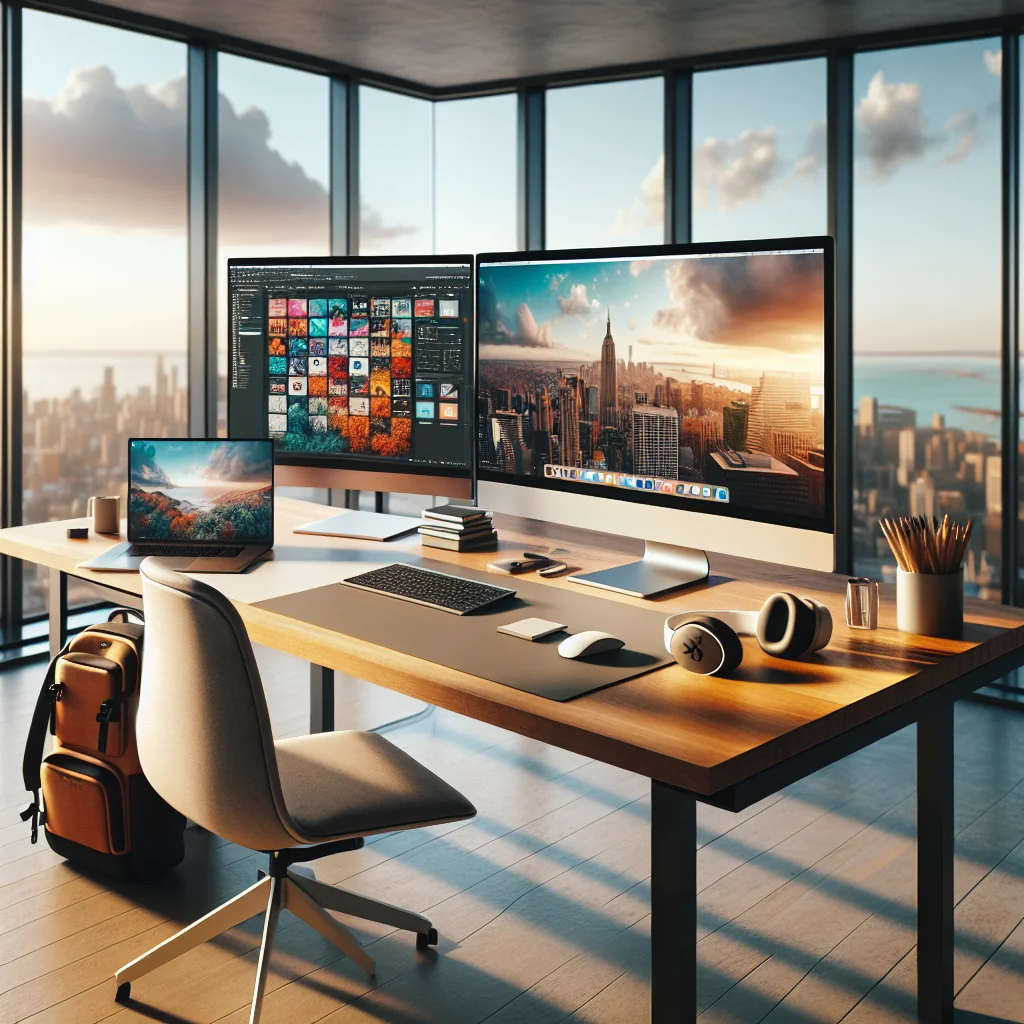
- Place your main monitor directly in front of your chair at arm’s length.
- Set your laptop or second monitor to the side, angled slightly toward you.
- Raise both screens so the top edges sit at or just below eye level.
Once the physical layout feels right, you can focus on making both screens act like a single, wide desktop. This saves time every day and keeps your workflow smooth.
Connect and Configure Your Displays
After the screens are in place, connect the cables and adjust your display settings. This step makes the two monitors work together as one wide workspace and reduces annoying cursor jumps.
Common connection options for dual monitors
| Port Type | Where You’ll See It | Typical Use |
|---|---|---|
| HDMI | Laptops, monitors, TVs | Most common for home setups |
| DisplayPort | Monitors, some laptops and docks | Higher-end and office displays |
| USB‑C | Modern laptops and monitors | Single cable for power and video |
Once you know which ports you have, you can connect and configure the two screens. Follow these steps to finish the setup and avoid trial and error.
- Plug both displays into your laptop, using HDMI, DisplayPort, or USB‑C.
- Open your operating system’s display settings and choose “Extend” display.
- Drag the monitor icons so they match their real positions on your desk.
- Set your main monitor as the “primary” display for taskbar and apps.
When the layout matches reality, your mouse will move smoothly between screens. Save this setup so you can plug in and start working faster next time you sit down.
Choosing a Chair That Works in Short-Term Rentals
The best chair for sitting all day is the one that supports your spine, not just your style. As a digital nomad, you often deal with random dining chairs, bar stools, or low couches that wreck posture. You can solve this with portable upgrades and a few key checks.
Quick Chair Checks for Better Support
When you can choose a chair, look for simple ergonomic features. These checks help you judge any seat in a few seconds, even in a budget rental or co-working space.
- Adjustable seat height so your feet rest flat on the floor.
- Backrest that supports the natural curve of your lower back.
- Seat depth that lets you sit back while leaving a small gap behind your knees.
- Firm cushion that does not sink after an hour.
If you cannot change the chair, add a travel lumbar pillow or a rolled-up towel behind your lower back. A foldable seat cushion and a compact footrest can also turn a bad chair into a workable one. Pack these small items in your digital nomad gear so you are never stuck with a painful setup.
Ergonomic Desk Setup: Fixing Posture at the Desk
An ergonomic desk setup starts with posture, not gadgets. The goal is to stack your ears, shoulders, and hips in one line while you work. This reduces strain on your neck, back, and wrists, even during long days.
Simple Posture Rules for Remote Work
To fix posture at your desk, adjust three things: chair height, screen height, and keyboard position. Your elbows should rest near a 90-degree angle, your wrists straight, and your screen at eye level. If you use a laptop, you will need extra gear to reach this position.
Check your posture every hour. If your head creeps forward or your shoulders round, reset: sit back, plant your feet, and pull your chin slightly in. Short movement breaks help more than stretching once at the end of the day.
Standing Desk vs Sitting Desk for Remote Work
Sitting and standing are both useful; the real benefit comes from switching between them. Sitting all day hurts your back and hips. Standing all day tires your feet and lower back. Changing positions is what keeps your body happy.
Portable Ways to Add Standing Time
If you travel, a full electric standing desk is not realistic. Instead, use a portable standing desk converter that folds flat in your bag or suitcase. You can place it on any table to raise your laptop and keyboard.
A good rhythm is to sit for 45–60 minutes, then stand for 20–30 minutes. Let your work tasks guide you: deep focus tasks while sitting, calls and email while standing. Listen to your body and adjust the ratio as needed so you feel fresh at the end of the day.
Dual Monitor Desk Setup and Flexible Screen Ideas
Many digital nomads miss their office monitors. A creative work from home desk idea is to build a flexible dual monitor desk setup that packs down fast. You can use a portable monitor, an iPad as a second screen, or a lightweight 24-inch monitor if you stay longer in one place.
Picking the Best Monitor for Remote Work
The best monitor for remote work should be easy on your eyes and simple to connect. Look for an adjustable stand or VESA mount, good brightness, and a matte screen. USB-C input is handy if your laptop supports it, because one cable can handle power and video.
When you set up two monitors, decide on your main screen. Place that monitor right in front of you at eye level. Put the second monitor to the side at a slight angle and keep the top edges lined up so your eyes do not jump up and down all day.
Minimalist Desk Setup and Cable Management Ideas
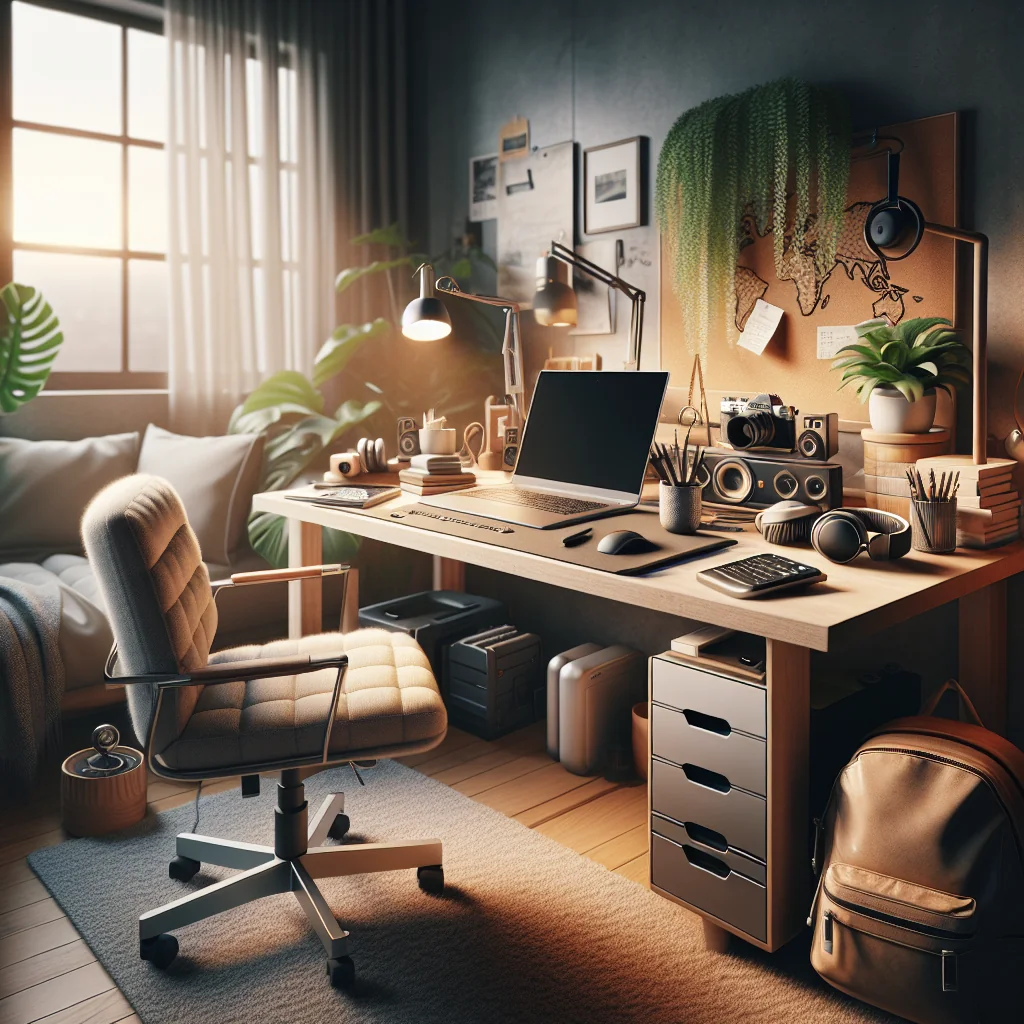
A minimalist desk setup helps your brain focus. Less visual noise means fewer distractions, which is key when you work from home and live in the same space. Minimal does not mean empty; it means only what you need stays on the desk.
Keeping Surfaces Clear and Cables Tidy
For digital nomads, a clean desk also makes packing simpler. Choose wireless gear when possible and keep a strict “one in, one out” rule for devices. Store small items in one tech pouch instead of letting them spread across the surface.
Smart cable management ideas keep your desk clean even with many devices. Use a short power strip mounted under the desk or on the wall. Add reusable cable ties or Velcro strips to bundle cords. Clip cables to the back edge of the desk so they drop straight down instead of across your work area.
Essential Work From Home Gear for Digital Nomads
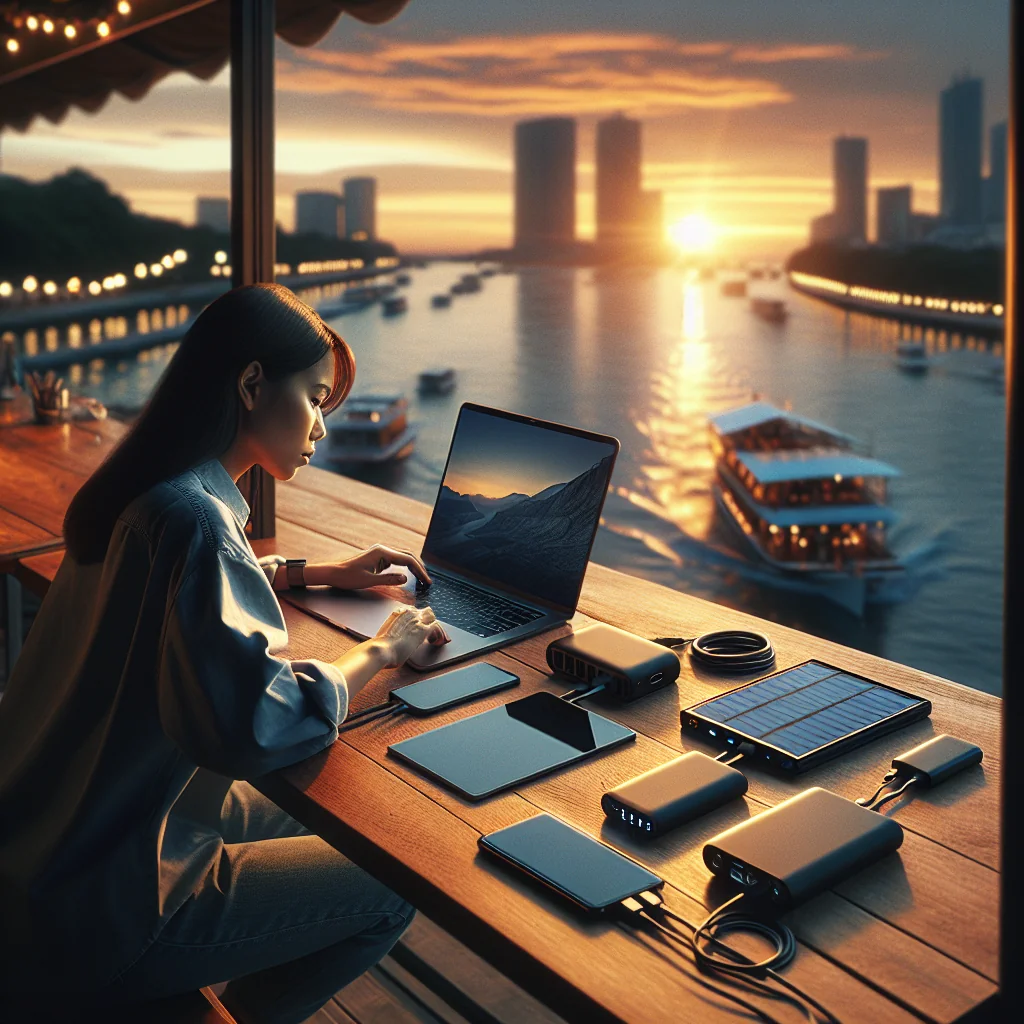
Your digital nomad packing list should cover comfort, focus, and video calls. The goal is a small, reliable kit that works in any apartment, hotel, or co-working space. Pack gear that solves common problems: bad chairs, low tables, poor lighting, and weak sound.
Core Kit Checklist for a Portable Office
Use this list as a base and adjust it for your role and travel style. Start with the essentials, then add extras only if you use them often.
- Laptop with good battery life and a compact charger.
- Portable laptop stand for eye-level screen height.
- External keyboard and mouse for better ergonomics.
- Foldable or inflatable lumbar pillow and seat cushion.
- Lightweight portable monitor or tablet for a second screen.
- Noise-isolating or noise-cancelling headphones with microphone.
- Compact LED video light and a small tripod or clamp.
- Portable USB webcam if your laptop camera is weak.
- Travel power strip and universal adapter, plus a few short cables.
- Packing cubes or pouches to group tech, cables, and office items.
With this core kit, you can build a familiar workspace in almost any room in under 15 minutes. That cuts friction and helps you start each workday faster and with less stress.
Laptop Stands, Keyboards, and Webcams for Long Days
Three small upgrades can change your work from home desk setup: a laptop stand, a keyboard, and a webcam. These tools improve posture, comfort, and how you appear on calls without taking much space in your bag.
Picking Gear That Balances Comfort and Portability
The best laptop stand for a desk lifts your screen to eye height and folds flat. Choose a stand that feels stable when you type and adjusts high enough to keep your neck straight. Metal stands often handle heat better than plastic ones and last longer.
The best keyboard for typing all day should have clear feedback, a layout you like, and a gentle typing angle. Some remote workers prefer mechanical keyboards, others like quiet low-profile keys. For video calls, a separate webcam placed at eye level beats most built-in laptop cameras, and a small LED light will help you look sharp even in dim rentals.
Lighting Ideas for Video Calls and Web Meetings
Good lighting for video calls makes you look awake and professional, even after a long travel day. Natural light is ideal, but you cannot always control windows in rentals. A simple lighting plan keeps you ready for Zoom meetings anywhere.
Simple Lighting Setups That Travel Well
Face a window when you can, with light coming from in front or slightly to the side. Avoid strong backlight from windows behind you, which turns you into a silhouette. If natural light is poor, use a small LED panel or ring light placed just above your screen.
The best webcam for online meetings should handle low light well and allow basic settings. Even a mid-range external webcam often beats a laptop camera. Pair it with your light and a neutral background, and your calls will feel more professional.
Building a Quiet Home Office Anywhere
Noise is one of the biggest threats to focus for remote workers. Thin walls, traffic, and roommates can ruin deep work and calls. You may not be able to rebuild the room, but you can build a quiet home office feel with a few portable changes.
Fast Sound Fixes for Rentals and Shared Spaces
Start by treating echo. Soft surfaces like curtains, rugs, and cushions absorb sound. In a bare rental, lay down a small rug, close curtains, and pile a few cushions in corners. Even hanging clothes on open racks helps reduce echo for calls.
For home office sound control, think in layers: block, absorb, and mask. Use draft stoppers or rolled towels at the bottom of doors to block sound leaks. Add soft materials to absorb reflections. Then use white noise or a fan to mask remaining sounds. Noise-cancelling headphones are a key part of any digital nomad kit for this reason.
Routines That Make Any Desk Feel Like a Real Office
Gear and creative desk ideas help, but habits make the biggest difference. To work from home productively, create a repeatable setup and a simple daily routine. This gives your brain clear signals: now it is time to work, now it is time to rest.
Setup and Shutdown Rituals for Focus
Each time you arrive in a new place, set up the same way: choose a desk, place your laptop stand, keyboard, mouse, and monitor, then plug in power and light. Do this before checking social media or exploring the area. The ritual anchors you to work mode and reduces procrastination.
Use time blocks for focused work, meetings, and admin tasks. Keep snacks and water nearby so you do not wander to the kitchen every hour. At the end of the day, pack away your gear or cover your desk. This small reset helps you switch off and enjoy the digital nomad life outside work hours.