Dual Monitor Setup Guide for Digital Nomads and Remote Workers
A smart dual monitor setup can make remote work smoother, faster, and less tiring. This dual monitor setup guide focuses on digital nomads and home office workers who want more screen space without losing ergonomics, portability, or comfort.
Below you will find a practical walkthrough that covers two monitors, ergonomic desk setup, posture, lighting, sound, and essential work from home gear that fits a modern, simple desk layout.
Choosing the Right Gear for a Dual Monitor Desk Setup
The base of any productive work from home desk setup is the right gear. Before you plug in a second screen, make sure your tools match how and where you work.
Core gear choices for remote workers and nomads
Digital nomads often need a flexible system that works at a home office desk, in a rental apartment, or on the road. Focus on portable, lightweight gear that still supports a full dual monitor desk setup when you are stationary for a while.
- Monitor for remote work: Aim for 24–27 inches, IPS panel, matte finish, and at least 1080p resolution. If you travel often, consider a portable USB-C monitor that folds flat.
- Laptop stand for desk: Choose a stand that lifts your laptop screen so the top of the display is at or slightly below eye level. A foldable metal stand works well for digital nomads.
- Keyboard for typing all day: Look for a full-size or compact keyboard with good key travel and low strain on your wrists. Many remote workers prefer low-profile mechanical or high-quality membrane boards.
- Chair for long sitting: If you stay in one place for months, invest in an ergonomic chair with adjustable seat height, lumbar support, and armrests that can move up and down.
This core gear forms the spine of your setup. Once these pieces are comfortable and reliable, adding a second monitor becomes much easier and more ergonomic.
How to Set Up Two Monitors with a Laptop
Most digital nomads start with a laptop, then add one or two monitors at home. The goal is simple: more space, less window switching, and a layout that supports deep work.
Step-by-step dual monitor setup guide
Follow these steps to connect and configure a stable dual display layout with your laptop.
- Check your laptop ports and graphics support. Look for HDMI, DisplayPort, USB-C with DisplayPort, or Thunderbolt. Confirm that your laptop can run two external displays plus its own screen, or at least two displays total.
- Decide on monitor roles. Many remote workers use the laptop screen for communication and the main monitor for focused work. If you use two external monitors, make one your primary screen for main tasks and the other for reference material.
- Connect monitors with the best available ports. Use USB-C or DisplayPort when possible for better stability. If you need adapters, choose short, good-quality ones that do not wobble in the port.
- Arrange displays in your operating system. In display settings, drag the monitor icons to match your physical setup. Align them by top edge so the cursor moves smoothly across screens.
- Match scaling and resolution. Set both monitors to their native resolution. Adjust scaling so text size is similar on each display to reduce eye strain.
- Fine-tune color and brightness. Lower brightness to a comfortable level, especially at night. If you work long hours, use a warm color temperature to reduce blue light.
Once your dual monitor desk setup is stable, spend a few days adjusting window layouts and shortcuts. Over time, you will learn which apps belong on which screen for your style of work.
Ergonomic Desk Setup for All-Day Comfort
A dual monitor setup only helps if your body can handle long sessions. An ergonomic desk setup keeps your neck, shoulders, and back in a safe position while you work.
Monitor placement and body alignment
Start by aligning your main monitor directly in front of you. The second monitor can sit slightly to the side, but avoid twisting your neck for hours to look at it. Keep your forearms parallel to the floor, elbows close to your body, and wrists straight over the keyboard. Your feet should rest flat on the floor or on a footrest if your chair is high.
Check your posture once an hour. Small changes, such as moving the chair closer or raising the monitor by a few centimeters, can reduce strain over a long day.
Standing Desk vs Sitting Desk for Remote Work
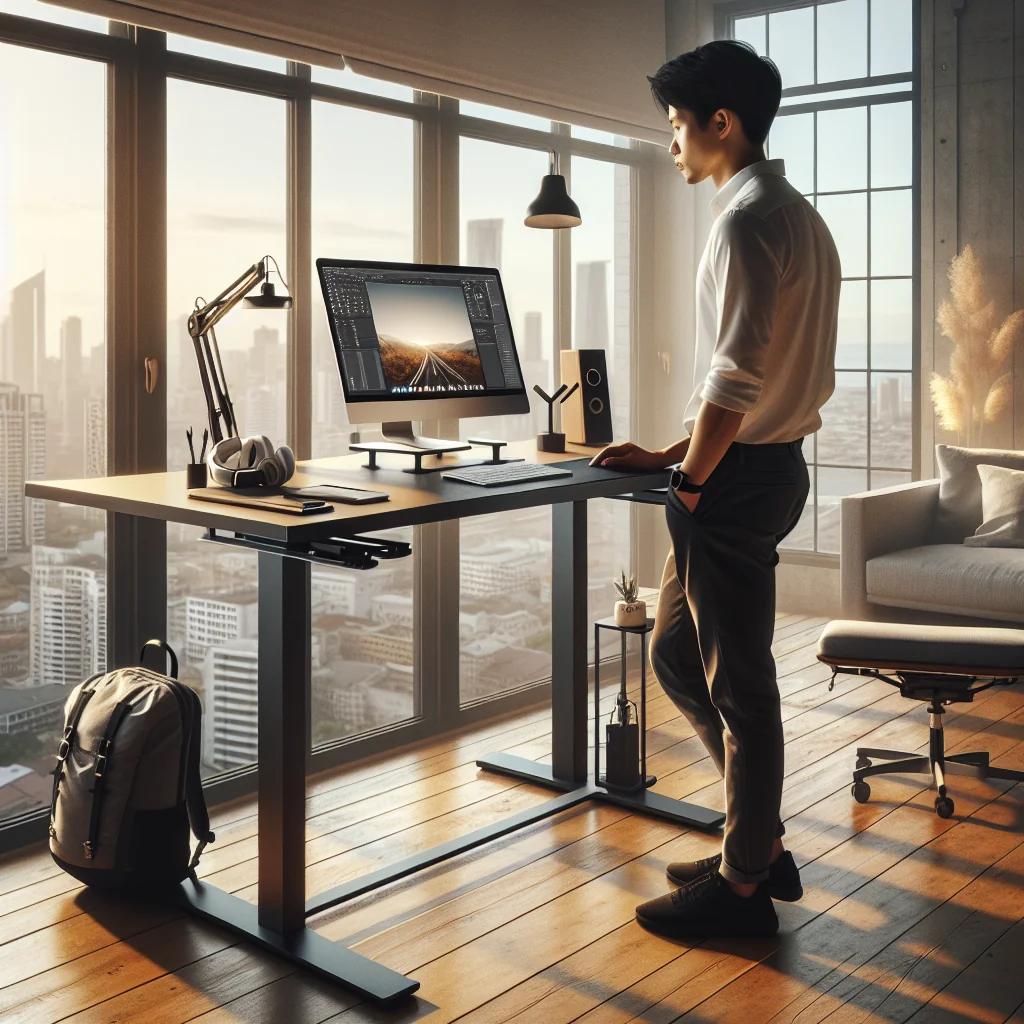
Remote workers often compare standing desk vs sitting desk setups. Both can work well if you use them correctly and switch positions through the day.
Choosing a sitting, standing, or hybrid layout
A sitting desk is simpler and often cheaper, but sitting all day can lead to tight hips, weak glutes, and back pain. A standing desk reduces sitting time yet can cause foot and leg fatigue if you stand without breaks. For many remote workers, a hybrid approach is best: use a sit-stand desk or a laptop stand on a high surface so you can alternate between sitting and standing every hour or two.
Whichever option you choose, keep your main monitor at eye level and your keyboard at a height that allows relaxed shoulders. This matters more than the exact chair or desk brand.
How to Fix Posture at Your Desk
Good posture is not just “sitting up straight.” It is a neutral position where your joints share the load and muscles do not overwork. A dual monitor setup can help or hurt, depending on how you place the screens.
Simple posture habits for dual monitor users
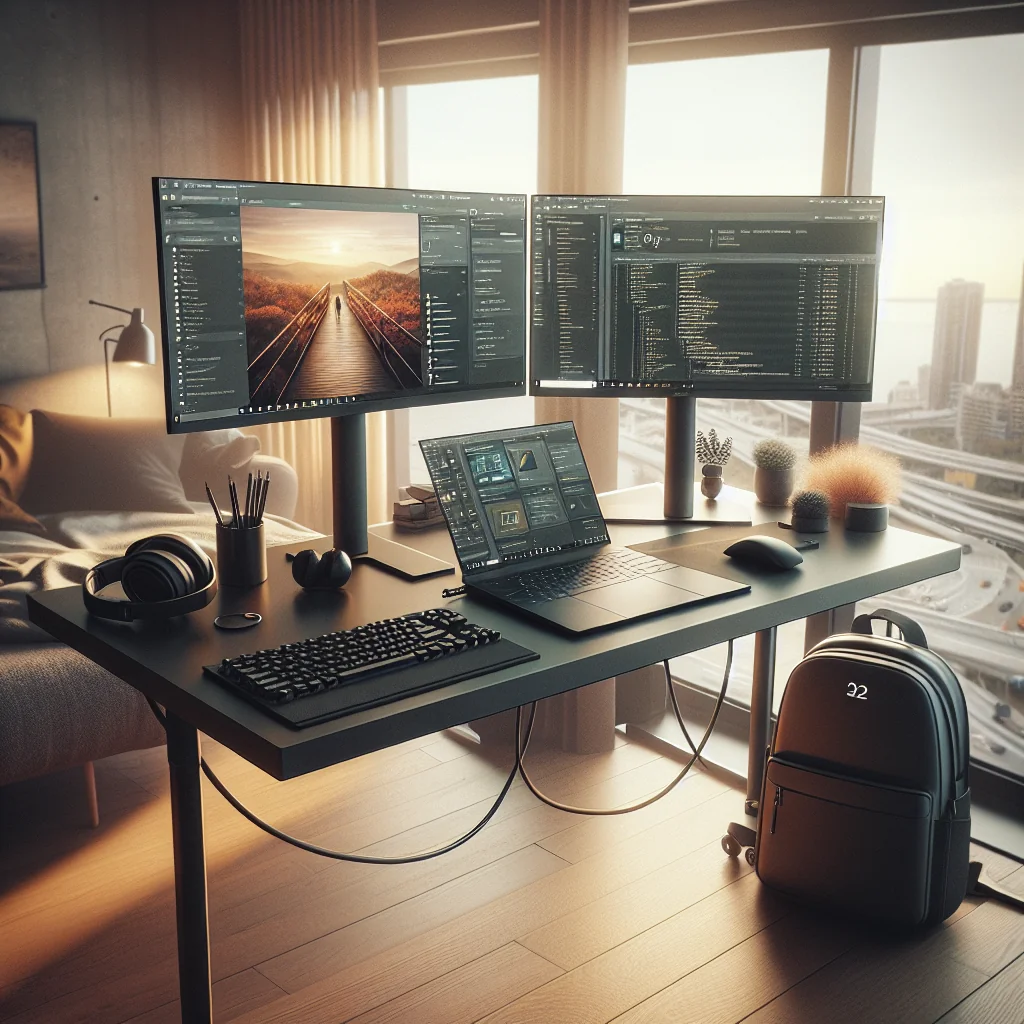
Center your main monitor so you do not twist your neck. If you use both monitors equally, place them side by side and sit between them, with the inner edges close together. Keep the top of the screens around eye level so you look slightly down, not up. Take short breaks every 30–60 minutes. Stand up, roll your shoulders, and gently move your neck. These micro-breaks matter more than any single perfect posture.
Over time, these habits reduce fatigue and help you stay comfortable through long focus blocks.
Minimalist Desk Setup and Cable Management Ideas
A cluttered desk makes focus harder, especially when you juggle two screens, a webcam, and audio gear. A minimalist desk setup keeps only what you need in reach and hides the rest.
Keeping your dual monitor desk clean and tidy
Start by removing all non-essential objects from your desk. Then add items back one by one: laptop, monitors, keyboard, mouse, notebook, and maybe a plant or one personal item. For cable management ideas, use simple tools: adhesive cable clips along the back edge of the desk, a cable sleeve for monitor and power cables, and a small under-desk tray or box for power strips. Label each charger so packing for trips becomes faster.
A clear visual field around your main monitor can help your brain settle into work more easily.
Building a Quiet, Sound-Friendly Home Office
If you work from home, noise can kill focus and ruin video calls. You do not always need full home office soundproofing, but you can build a quiet home office with a few smart changes.
Reducing noise for calls and deep work
Soft materials absorb sound. Use a rug, curtains, and some fabric or foam panels on walls if possible. A bookshelf filled with books also helps break up echoes. Seal gaps around doors with weatherstripping, and use a solid-core door if you have that option. If noise still leaks in, consider a white noise machine or a simple fan to mask sudden sounds.
Better sound makes video calls less tiring and helps you stay in flow during demanding tasks.
Lighting, Webcam, and Audio for Video Calls
Good video calls are part of professional remote work. Your dual monitor setup, lighting, and camera placement all affect how you appear on screen.
Making your dual monitor setup video-call ready
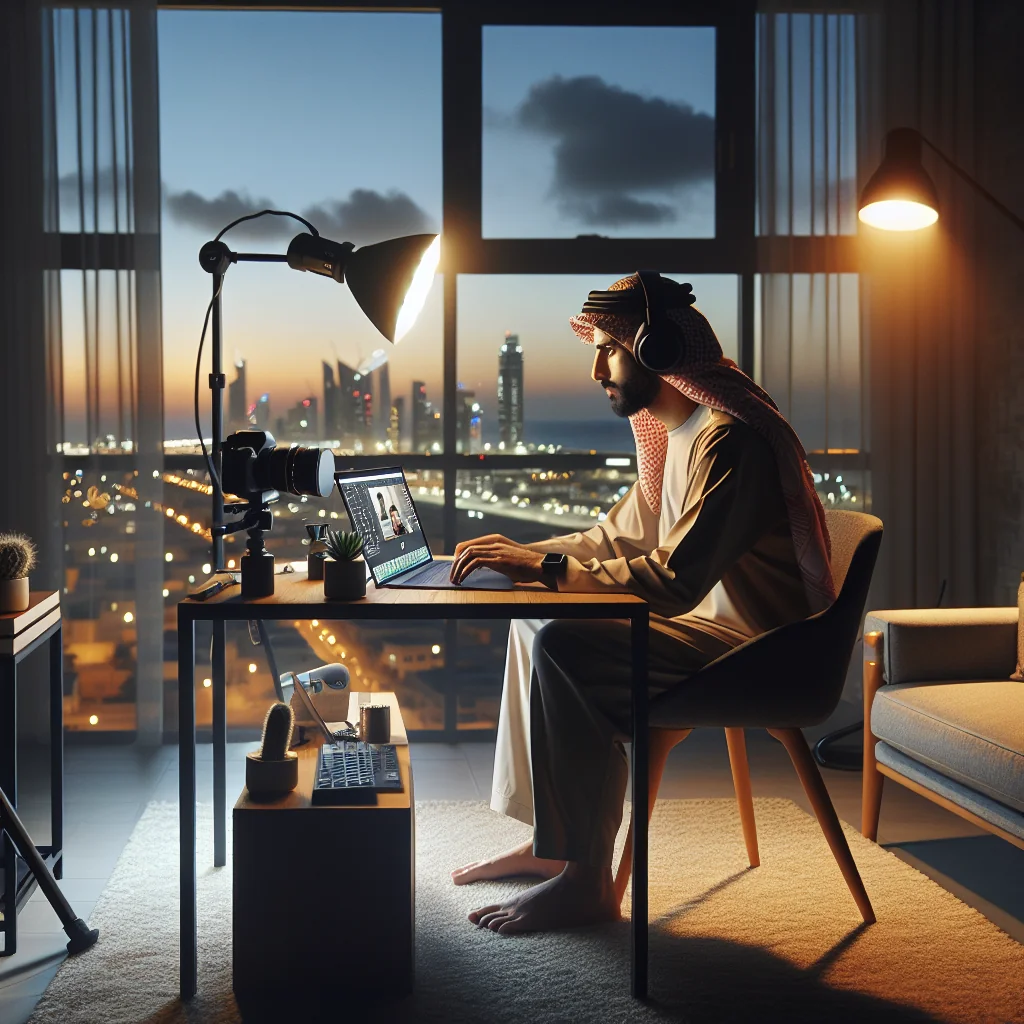
The best lighting for video calls is soft, even light from in front of you, slightly above eye level. A small desk lamp with a diffuser or a compact ring light can work well. Avoid bright windows behind you, which create harsh backlight. Place your webcam at eye level, centered above your main monitor. The webcam does not need to be high-end; focus on 1080p resolution, good low-light performance, and a simple mount that fits on thin monitors or laptop lids.
Use wired or reliable wireless headphones with a clear mic so your voice stays steady even in noisy places.
Essential Work From Home Gear for Productivity
A dual monitor setup is only one part of a productive work from home system. A small set of essential work from home gear can help you stay focused and comfortable through long days.
Gear categories that support dual monitor work
Think in categories: display, input, comfort, sound, and lighting. Each category should support long, focused work sessions without constant fiddling or discomfort. Below is a simple gear overview that pairs well with this dual monitor setup guide.
Core Gear Checklist for a Productive Dual Monitor Home Office
| Category | Key Item | Why It Matters |
|---|---|---|
| Display | Main monitor plus laptop stand | Gives clear visuals and eye-level screens for better posture. |
| Input | Keyboard plus mouse or trackball | Reduces hand and wrist fatigue and boosts typing comfort. |
| Comfort | Supportive chair or sit-stand desk | Supports back and hips during long work blocks. |
| Sound | Noise control plus headphones | Cuts distractions and improves call clarity. |
| Lighting & Video | Soft front light plus basic webcam | Makes you look clear and professional on screen. |
| Mobility | Portable monitor and compact power strip | Keeps your mobile office light but complete. |
You do not need every item at once. Start with core comfort pieces, then add gear as you notice friction in your daily work.
Digital Nomad Packing List for a Portable Dual Monitor Setup
Digital nomads face an extra challenge: building a good home office setup that can move between cities. A smart packing list keeps weight down while still allowing a dual monitor workflow when you settle for a few weeks.
Portable gear that supports two screens
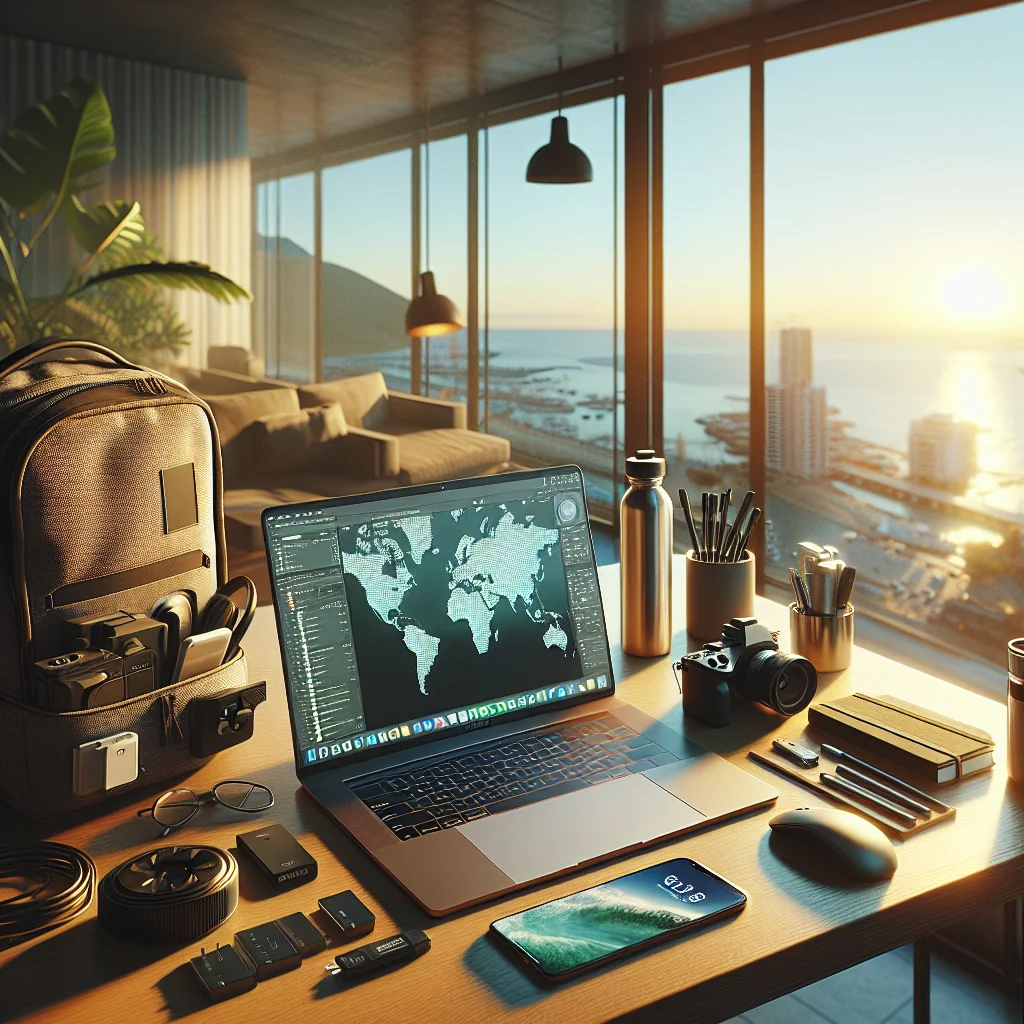
Core items usually include a lightweight laptop, a foldable laptop stand, a compact keyboard and mouse, and a portable second monitor that connects with a single USB-C cable. Add a small travel power strip, a few short cables, and a fabric pouch for cable management. Pack a simple headset with a built-in mic for calls, and a collapsible laptop riser that can work on kitchen tables or co-working desks.
With this kit, you can recreate a familiar dual monitor desk setup almost anywhere you go.
Work From Home Desk Setup Ideas for Better Focus
Once your gear is in place, think about how you use space. The best home office setup supports your habits instead of fighting them.
Arranging screens and tools for focus
Keep your main monitor centered and clear of sticky notes and clutter. Use the second monitor for reference material, dashboards, or communication apps so you can glance without breaking focus on your main task. Place a small notepad or digital tablet on your non-mouse side for quick notes. Keep a water bottle within reach so you drink regularly without leaving your desk every few minutes.
These small layout choices help you stay in flow and reduce context switching during the day.
How to Work From Home Productively with Two Monitors
A dual monitor setup can either make you productive or scatter your attention. The difference lies in how you use the extra space.
Screen rules and habits that boost output
Set clear rules for each screen. For example, keep deep work tasks like writing, coding, or design on the main display and support material such as email, chat, and calendars on the secondary display. Turn off notifications on the main screen during focus blocks. Use time blocks of 45–90 minutes of single-task focus, then a short break. During breaks, stand up, stretch, and look away from the screens.
This habit protects your posture, reduces eye strain, and keeps your dual monitor setup working for you, not against you.