Top Home Office Soundproofing Tips for a Quiet, Productive Workday
A quiet workspace is one of the most underrated parts of remote work. The best chair or laptop stand will not help much if traffic, neighbors, or family noise keep breaking your focus. These top home office soundproofing tips will help you build a quiet home office that also supports good posture, smart cable management, and an ergonomic desk setup for long, productive days.
Choose and Shape the Right Room for Sound
Before buying gear, look at the space itself. Good home office soundproofing begins with smart room choice and layout. This matters whether you have a dedicated office, a corner of your living room, or a temporary setup in a rental as a digital nomad.
Pick the room farthest from street noise and shared walls. If you can, avoid rooms with large bare windows facing traffic. Place your desk so you face away from the noisiest wall. This simple move can reduce how much sound reaches your ears, especially during video calls.
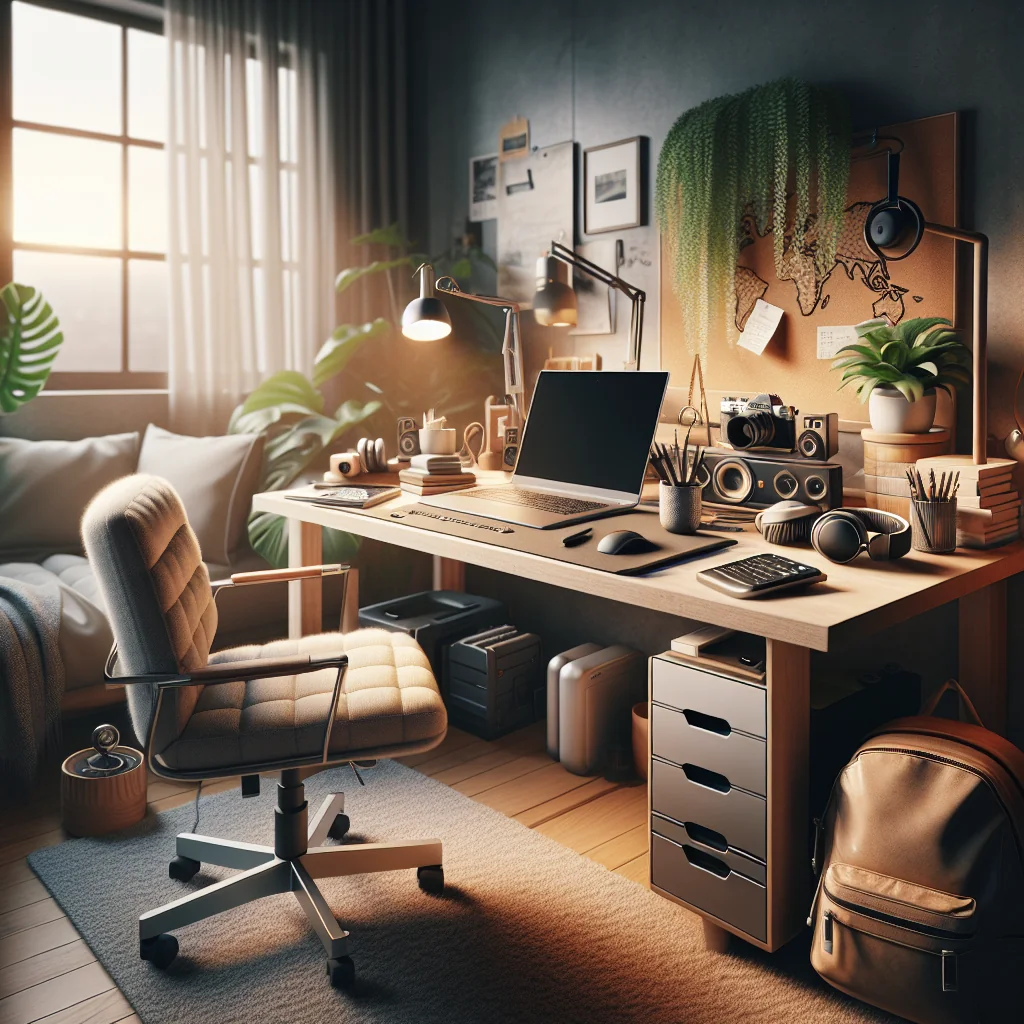
Fill the room with soft surfaces. Rugs, bookshelves, curtains, and even a fabric sofa help absorb sound. A minimalist desk setup does not need to be an empty echo chamber; you can keep surfaces clean while still using textiles and furniture to cut noise and improve call quality.
Room Placement vs. Noise Sources
The closer your office is to common noise sources, the harder soundproofing becomes. Try to separate your workspace from kitchens, busy streets, and shared hallways. Even moving one room farther away can change how loud voices and traffic feel during meetings.
Seal the Gaps: Doors, Windows, and Quick Fixes
Most noise leaks through small gaps. Sealing these is one of the fastest top home office soundproofing tips you can use, even in a rental or short-term stay.
- Use a door draft stopper or rolled towel at the bottom of the door.
- Add peel-and-stick weatherstripping around door and window frames.
- Hang thick curtains or blackout drapes over windows to soften outside noise.
- Close unused vents during calls if they transmit hallway sounds.
These simple changes help you build a quiet home office without tools or permanent changes. They are easy to pack in a digital nomad kit and reuse in each new place you work from.
Comparing Fast Soundproofing Fixes
The table below compares common quick fixes for a home office and how they help reduce noise and echo.
| Solution | Main Benefit | Best For |
|---|---|---|
| Door draft stopper | Blocks gaps under doors | Hallway voices, kids, pets |
| Weatherstripping | Seals frames and cracks | Traffic noise, wind, rattling |
| Thick curtains | Absorbs and softens sound | Street noise, echo from windows |
| Foam panels | Reduces echo in the room | Calls, recording, streaming |
| Rug or carpet | Dampens footsteps and chair noise | Hard floors, upstairs neighbors |
You can mix several of these fixes for a stronger effect. Start with the easiest option, test the difference during a call, then add more layers if you still hear too much noise.
Soften Echo: Rugs, Furniture, and Panels
Soundproofing has two goals: block outside noise and tame echo inside your room. Echo makes your voice harsh on Zoom and can distract you during long work sessions. The right home office soundproofing also supports better lighting and webcam placement because your space feels more controlled.
Add a thick rug under your desk and chair, even if you already have carpet. This helps reduce rolling chair noise and keyboard clatter. Place bookshelves or storage units along bare walls near your monitor. The uneven surfaces scatter sound and cut echo.
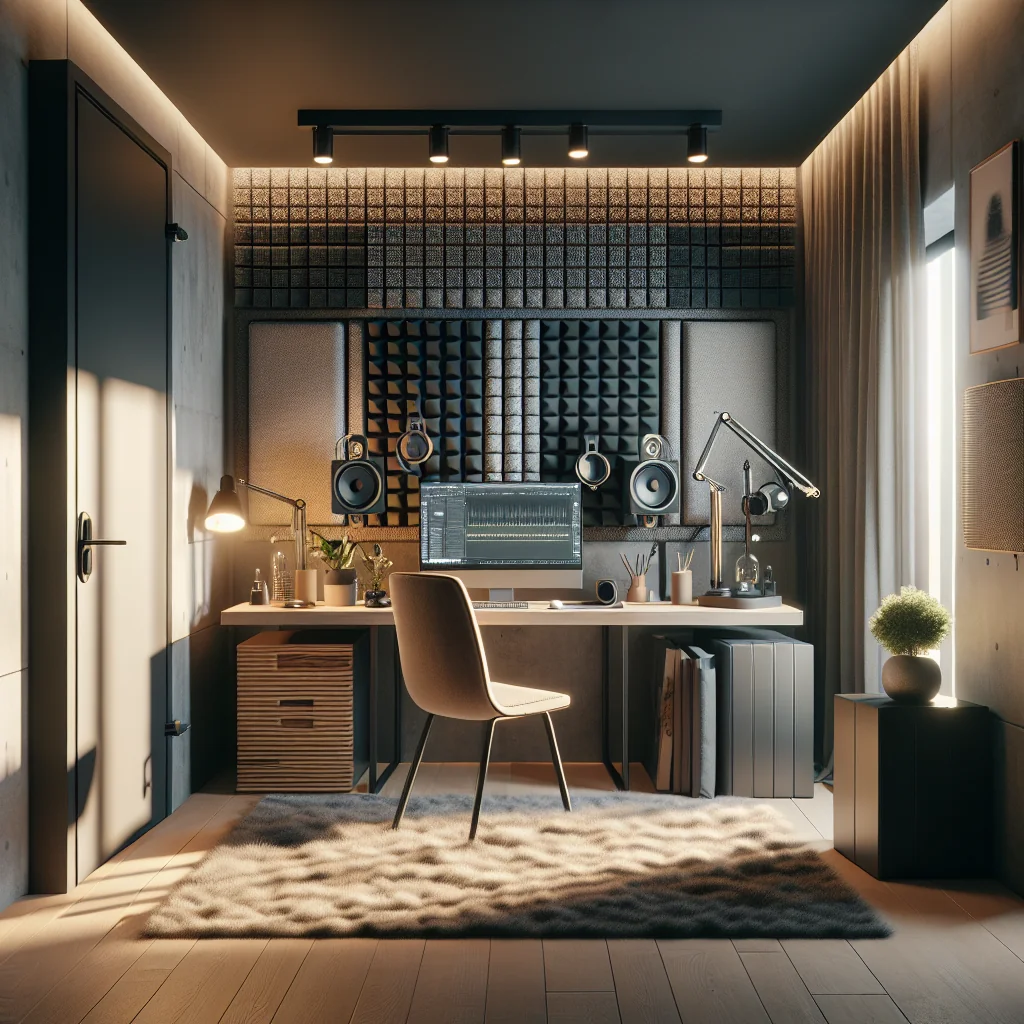
If you want a more advanced setup, use removable acoustic panels or foam tiles on the wall behind your monitors. Place them at ear level when you sit in your chair. This is especially helpful if you record content or spend hours in video calls and need clear audio.
Where to Place Acoustic Panels
Focus panels on the wall in front of you, behind you, and to the sides at ear height. These are the main reflection points for your voice. A few well-placed panels in these spots are often more effective than covering an entire wall at random.
Quiet Gear Choices: Chair, Keyboard, and Accessories
Your gear can be a source of noise or a tool for silence. For digital nomads and remote workers, the best home office setup balances comfort, sound, and portability.
Your chair should roll smoothly and quietly. Look for soft casters or add wheel covers if you work on hard floors. A quiet chair reduces background noise during meetings and lets you shift posture without distracting squeaks.
Your keyboard should match your noise tolerance. Mechanical keyboards feel great but can be loud. If you share space, choose quieter switches or a soft-touch keyboard. Pair this with a mouse that glides silently on a desk mat. Small gear choices add up to a calmer sound profile in your home office.
Microphones and Headphones for Clear Calls
A simple USB microphone and closed-back headphones can transform your call quality. The mic captures your voice clearly at a close distance, while the headphones block outside noise and stop sound from leaking back into the mic.
Desk Layout: Ergonomic and Sound-Conscious Setup
A good ergonomic desk setup can also help with sound. Where you place your monitors, laptop stand, and microphone affects how noise reaches your ears and your mic. Aim to build a layout that supports posture and reduces distractions.
Place your laptop on a stand so the top of the screen is at eye level. This helps fix posture and keeps your head upright, which in turn keeps your mouth at a steady distance from your microphone or webcam mic. Consistent distance means more even sound, so background noise is less noticeable.
For a dual monitor desk setup, angle the screens slightly in a shallow “V” shape. This creates a small sound pocket that can reduce echo around your keyboard area. Keep speakers away from walls to avoid extra vibration and booming sound during calls or focus music.
Order of Setup for a Quiet Desk
Follow these steps to arrange your desk for both comfort and sound control.
- Place the desk in the quietest corner of the room.
- Center your main monitor at arm’s length and eye level.
- Add a laptop stand so the laptop screen matches monitor height.
- Position the microphone 15–30 cm from your mouth, off to the side.
- Angle secondary monitors in a shallow “V” around your main screen.
- Route cables along the back edge of the desk with clips or trays.
- Place a rug under the chair area to cut rolling and foot noise.
Setting up your desk in this order keeps sound, posture, and cable management aligned. You avoid redoing work and end with a layout that feels calm and efficient.
Sitting vs Standing: Which Desk Style Stays Quieter?
Many remote workers wonder whether a standing desk or a sitting desk helps focus more. From a sound point of view, both can work well, but each has trade-offs for a quiet home office.
A sitting desk with a stable chair is usually quieter because you move less and roll less. This is ideal for long typing sessions and deep work. Just remember to keep a neutral spine, feet flat, and elbows at about 90 degrees.
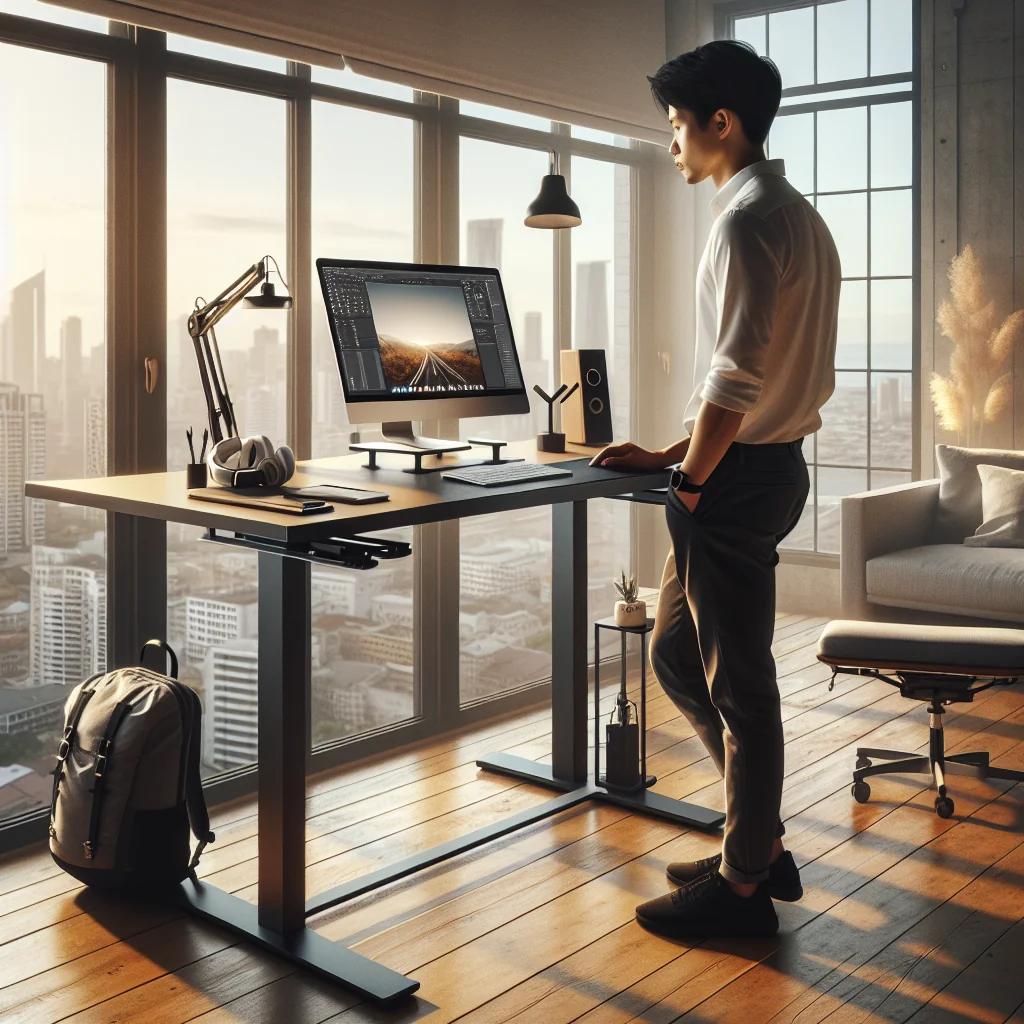
A standing desk encourages more movement, which can create small noises from shifting feet or desk wobble. If you choose a standing desk, pick a stable frame and use an anti-fatigue mat that also absorbs sound. Alternate between sitting and standing so your posture stays healthy while your workspace stays calm.
Reducing Noise from Adjustable Desks
Motorized desks can be loud while moving. Adjust the height before calls start, and avoid rapid changes during meetings. Place felt pads under desk feet to reduce vibration through the floor.
Cable Management for a Clean, Quiet Desk
Cable clutter does more than look messy. Loose cables slap against walls, buzz against the desk, and snag on your chair. Good cable management ideas for desk setups help both sound and focus, especially in a minimalist desk setup.
Use under-desk trays or adhesive clips to route cables along the back of the desk. Bundle monitor, laptop, and webcam cables together with hook-and-loop straps. This keeps them from moving and making noise when you adjust your chair or raise a standing desk.
For digital nomads, portable cable organizers keep your essential work gear ready to plug in quickly. A tidy, quiet desk saves setup time in new spaces and supports a calm mental state for productive work.
Labeling and Grouping Cables
Label each cable near the plug with a short tag. Group power cables on one side of the tray and data cables on the other. This simple system cuts buzz, makes changes faster, and keeps your desk quieter over time.
Audio and Video Call Setup That Supports Soundproofing
Home office soundproofing and video call quality are closely linked. A noisy space makes even a good webcam look less professional because people can see you reacting to distractions. Build your setup so both audio and video work together.
Place your main monitor directly behind the webcam so you look near the lens while speaking. This helps you stay centered and reduces head turning, which can change how your voice hits the mic. If you use two monitors, set the primary one in front of the webcam and the second slightly off to the side.
The best lighting for video calls is soft, even light in front of you. Desk lamps with diffusers or ring lights reduce harsh shadows and let you keep curtains partially closed to block noise. Good lighting means you can keep windows covered without looking dark or grainy on screen.
Testing Your Call Environment
Record a short test call in your usual setup. Listen for echo, fan noise, and outside sounds. Adjust mic distance, curtain position, and rug placement, then record again. Small tweaks often bring a big jump in clarity.
Dual Monitor Setup Without Extra Noise
A dual monitor desk setup can boost productivity, but it can also add fan noise, cable clutter, and more surfaces for sound to bounce off. Plan the layout carefully to keep the space quiet and efficient.
Mount both monitors on a single arm if possible. This frees desk space and reduces vibration noise through the desk surface. Keep the backs of the monitors a few inches from the wall so sound does not reflect straight back at you.
Set monitor brightness so you do not need extra overhead lights. This lets you use softer lamps, which are often quieter and cooler, improving comfort during long workdays.
Balancing Performance and Fan Noise
High-performance laptops and monitors can run hot and loud. Use power-saving or silent modes during calls, and place laptops on stands to improve airflow. Cooler gear often runs more quietly.
Portable Soundproofing Tips for Digital Nomads
Digital nomads need soundproofing solutions that pack easily. You cannot control every apartment or coworking space, but you can carry a small kit that improves almost any room.
Include a light travel rug or foldable mat, a door draft stopper, and a compact set of foam panels with removable adhesive in your bag. These items help you build a quiet home office corner in hotels, rentals, or shared flats.
Add noise-cancelling headphones and a small USB microphone to your essential work gear. This combo cuts external noise in your ears and gives your voice a clean, close sound for clients and team meetings, even in less-than-ideal spaces.
Adapting to New Spaces Quickly
On arrival, walk the room and clap once in each corner. The loudest echo tells you where sound is worst. Place your desk in the quietest corner, lay down your rug, and hang or lean panels near the noisiest wall.
Daily Habits That Protect Focus and Posture
Gear and soundproofing matter, but habits complete the picture. A quiet room is wasted if you sit in pain or work in a distracted way. Align your posture, sound, and workflow for long-term productivity.
Check your posture at the start of each session: feet flat, hips back in the chair, shoulders relaxed, and screen at eye level. Use your standing desk in short blocks to reset your back and neck. These small habits support a healthy home office setup.
Plan deep work blocks during the quietest times in your home. Save shallow tasks for noisier periods. This simple schedule uses your home office soundproofing and ergonomic desk setup to make productive work feel natural, not forced.
Noise Rules and Communication at Home
Share your meeting schedule with people you live with. Ask for quiet during key calls and offer quiet times in return. Clear rules reduce surprise noise and make your soundproofing work even better.
Bringing the Top Home Office Soundproofing Tips Together
A productive home office is more than a good chair or a fast laptop. Combining top home office soundproofing tips with ergonomic gear, smart lighting, and clean cable management creates a space that feels calm and focused. For digital nomads and remote workers, that space may move, but the principles stay the same.
Choose the quietest corner, seal gaps, and soften hard surfaces. Pick a comfortable chair, a monitor and keyboard that match your work style, and lighting that flatters you on calls. Build a desk layout that supports posture, reduces noise, and keeps your essential gear within reach.
With these steps, your home office or travel setup becomes a quiet base for deep work, clear calls, and a healthier workday, where sound, comfort, and productivity all support each other.