Designing a quiet home office starts with one clear goal: protect your focus. A calm, ergonomic, and well-organized workspace helps you think clearly, stay comfortable, and reduce stress during long workdays. This guide walks through layout, sound, furniture, and daily habits so you can build a quiet office that works in any home.
Clarify Your Quiet Home Office Goals Before You Buy Gear
Before buying chairs, panels, or gadgets, decide what “quiet” means for you. Some people need silence for writing; others just need less echo and fewer interruptions on calls. Clear goals help you design a quiet home office that suits your work, not someone else’s ideal setup.
Define Your Work Style and Noise Triggers
Start by listing your main tasks and what disturbs them. Writing or coding needs long, calm blocks of time. Sales calls need clear audio and a background that looks professional. Notice whether voices, traffic, or household sounds distract you most; this will shape your soundproofing plan.
Measure Your Space and Plan the Layout
Next, measure the room or corner you will use. Note window positions, doors, and any noisy walls. A good layout places your desk away from busy doors and thin walls, and if possible, at a right angle to windows. This simple planning step makes later sound and light fixes much easier.
Choose the Right Room and Position for a Quiet Office
Room choice often matters more than any single product. A well-placed desk in a calm room beats an expensive chair in the middle of household traffic. Think about both outside noise and movement inside the home.
Pick the Calmest Available Room or Corner
Choose a room that is away from the street, shared walls, or noisy neighbors if you can. If you do not have a spare room, pick a corner furthest from the kitchen and living area. Even a small, quiet nook can work better than a large, noisy room.
Place Your Desk to Reduce Noise and Glare
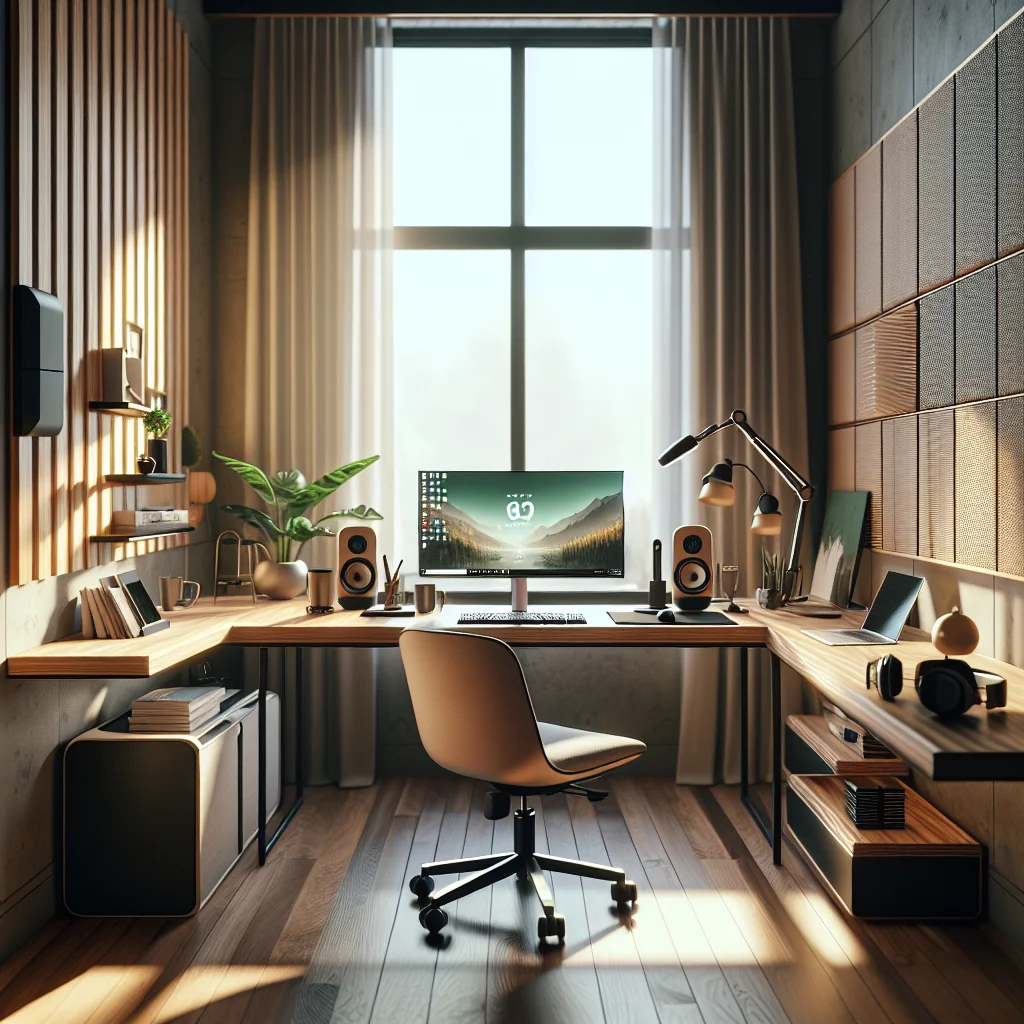
Place the desk so your back is not facing the door; this reduces surprise interruptions. Aim to sit with a wall behind you and a window to the side, not directly behind or in front. This helps with both sound and lighting, and it makes video calls look more professional.
Soundproofing Basics for Designing a Quiet Home Office
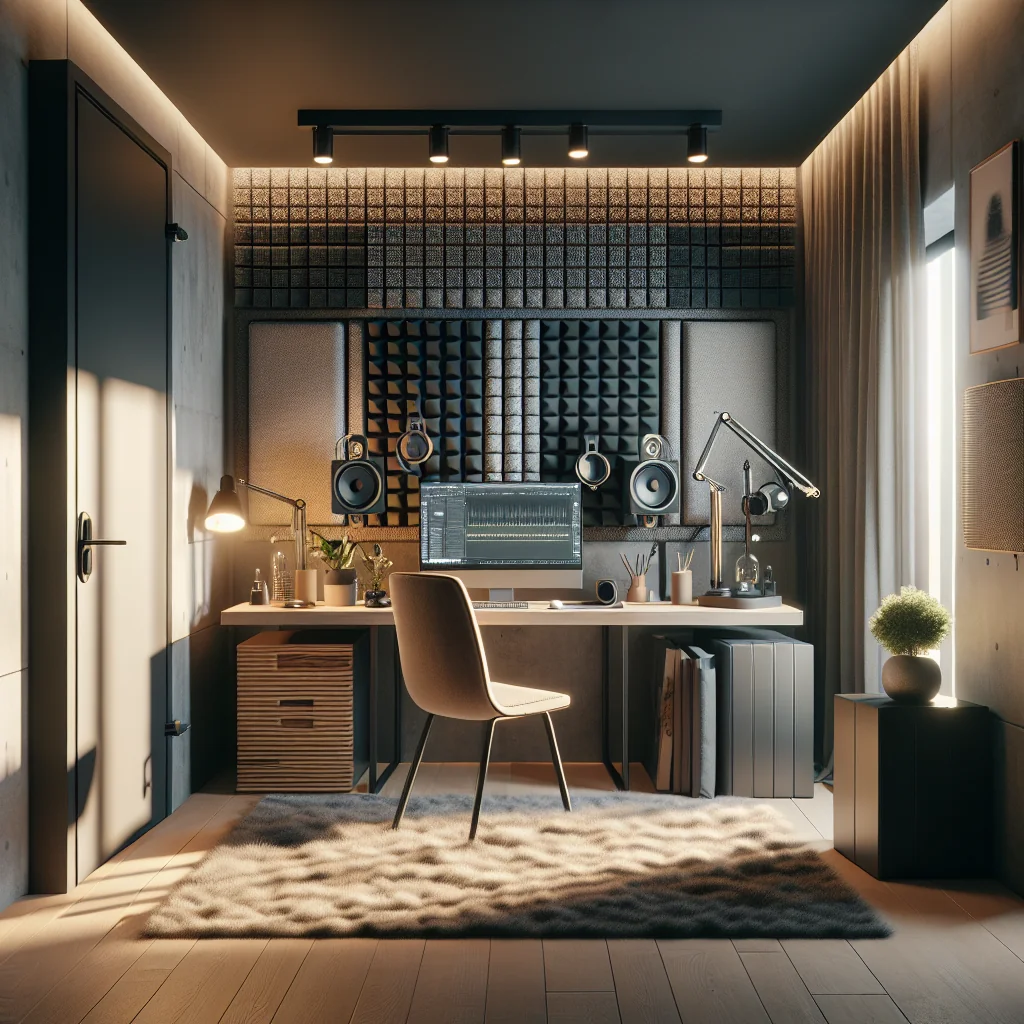
Soundproofing may sound technical, but simple steps can cut a lot of noise. You do not need to rebuild walls to make a meaningful difference to your workday. Focus on blocking outside noise and softening echoes inside the room.
Block Outside Noise from Doors, Windows, and Walls
Start with the biggest gaps. Use weatherstripping or foam tape around door frames, and add a door sweep to close the gap at the bottom. Hang thick curtains over windows, and if traffic is loud, consider double curtains with a sheer layer plus a heavier one. A full bookcase or wardrobe against a thin wall can also help block sound.
Reduce Echo and Improve Call Quality Inside the Room
Echo comes from hard, flat surfaces. Add a rug on hard floors, and place soft items like cushions, fabric panels, or a cork board on large empty walls. A couch, armchair, or even a clothes rack with hanging garments can break up sound reflections. For calls, combine these changes with headphones or a headset to keep your voice clear.
Ergonomic Furniture for a Quiet, Comfortable Home Office
Quiet is not just about sound; physical comfort also affects mental calm. An ergonomic setup helps you work longer with less strain, which keeps your focus steady. Think of the chair and desk as the base of your quiet home office.
Select a Supportive Chair for Long Work Sessions
A supportive chair keeps your spine in a neutral curve and allows small movements. Look for adjustable seat height, lumbar support, and armrests that let your shoulders relax. If you cannot change the chair, add a small cushion for your lower back and use a box or footrest so your knees stay at roughly a right angle.
Set Desk and Screen Height to Protect Your Posture
Your desk should let your elbows rest near a 90-degree angle with your arms close to your body. Raise your monitor so the top of the screen is at or just below eye level. If you use a laptop, a stand and external keyboard help you reach this posture without bending your neck.
Standing Desk vs Sitting Desk in a Quiet Home Office
Many people wonder if a standing desk is better for focus and comfort. The answer is usually a mix of both sitting and standing. Alternating positions can reduce stiffness and help you stay alert through the day.
Compare Sitting and Standing Desks for Home Use
The short table below compares the main differences between sitting and standing desks for home offices.
Comparison of Sitting and Standing Desks for Home Offices
| Aspect | Sitting Desk | Standing Desk |
|---|---|---|
| Comfort for long tasks | Good for long focus if posture is supported | Best in shorter blocks of 30–60 minutes |
| Common strain points | Back, hips, and neck if you slump | Feet, knees, and lower legs if used too long |
| Space needs | Works with almost any table plus a laptop stand | Works best with an adjustable frame or desktop riser |
| Best way to use | Deep work, writing, and detailed tasks | Calls, email, and lighter tasks while you move |
If a full standing desk is not possible, a desktop riser can raise your keyboard and monitor on a normal table. Use standing periods for calls or simple tasks, then switch back to sitting for detailed work so your body stays fresh.
Arrange Screens and Accessories for Less Strain
Whether you sit or stand, keep your main screen directly in front of you at arm’s length. If you use two screens, center the main one or the gap between them in front of your nose. Place the keyboard and mouse close enough that your elbows stay under your shoulders, which reduces neck and shoulder tension.
Step-by-Step Posture Check for Your Home Office
Even perfect furniture cannot fix poor posture by itself. A quick daily posture check helps you use your gear in a healthy way. This small habit can prevent many common aches linked to desk work.
Run a Daily Posture Checklist
Use this simple ordered list once or twice a day to reset your posture:
- Sit back so your lower back touches the chair’s backrest.
- Adjust seat height so feet rest flat and thighs feel level.
- Check that knees are roughly in line with or slightly below hips.
- Place the monitor so the top edge is at or just below eye level.
- Keep the screen about an arm’s length away from your face.
- Pull the keyboard close so elbows stay under your shoulders.
- Relax your shoulders; lower the desk or chair if they lift.
- Keep wrists straight while typing, not bent up or down.
- Set a reminder to stand, stretch, or walk briefly every hour.
These posture checks take less than a minute but can greatly reduce neck, back, and wrist strain over weeks and months. Combine them with short movement breaks for the best effect.
Quiet-Friendly Tech: Screens, Laptop Stands, and Input Devices
Tech choices also affect how calm your office feels. The right screens and accessories reduce physical strain and mental friction, which supports quiet, focused work. You do not need the most expensive gear; you just need tools that match your tasks.
Use Single or Dual Monitors Without Overloading Your Desk
A single large monitor works well for writing, research, and many office tasks. Dual monitors shine when you compare documents, work with data, or design. If you add a second screen, keep cables tidy and avoid blocking windows or speakers. The goal is more space for work, not more visual clutter.
Improve Laptop Ergonomics with Stands and External Devices
A laptop on a low table encourages you to bend your neck and round your shoulders. A folding laptop stand lifts the screen, while an external keyboard and mouse let your hands rest in a better position. Test your setup by typing for a few minutes; if your shoulders tense or wrists bend, adjust heights and distances until your body feels relaxed.
Lighting and Acoustics for Quiet, Clear Calls
A quiet home office should also support clear video and audio calls. Poor lighting can make you strain your eyes and appear tired on screen. Harsh echoes can make calls stressful for you and others.
Set Up Soft, Even Lighting Around Your Desk
Place your main light source in front of you or slightly to the side, not behind your head. A small desk lamp or ring light near your monitor can soften shadows on your face. If you have a window, try to face it or sit at an angle, rather than having it directly behind you, which can cause glare and darken your face on camera.
Use Microphones and Headphones to Control Sound
Even with good room sound, a basic USB microphone or a decent headset can improve clarity. Headphones reduce how much outside noise you hear and also limit how much sound leaks from your calls into the room. For shared homes, this helps keep the space quieter for everyone.
Cable Management and Minimalist Desk Design
Visual clutter can be as distracting as noise. Clear surfaces and tidy cables make your office feel calmer and easier to clean. A simple, minimalist layout also helps you reset the room quickly at the end of the day.
Hide Cables and Power Strips
Group cables with small ties or clips and run them along the back edge of the desk. Use a box, tray, or under-desk mount to hide power strips and excess cable length. Label each cord near the plug so you can unplug devices without guesswork.
Keep Only Essential Items on the Desk
Limit the desktop to items you use every day: computer, keyboard, mouse, notebook, and maybe one personal object. Store other tools in drawers or bins. A clear surface makes it easier to focus and also supports the quiet mood you are trying to build.
Essential Items for Designing a Quiet Home Office
You can build an effective quiet office with a small set of well-chosen items. The goal is to combine comfort, sound control, and order without filling the room with gadgets. Use the checklist below as a starting point.
Core Quiet Office Checklist
Use this unordered list to review the essentials for your quiet home office:
- Supportive chair with lumbar support or a separate lumbar cushion.
- Stable desk or table at a height that fits your chair.
- Laptop stand or monitor at eye level, plus external keyboard and mouse.
- Rug, curtains, and soft furnishings to absorb sound and reduce echo.
- Weatherstripping or door sweep to reduce noise from hallways.
- Headphones or headset for calls and focused work sessions.
- Desk lamp or small light source placed near your monitor.
- Cable clips, ties, and a box or tray for power strips.
- Simple storage for papers and supplies to keep the desk clear.
Start with what you already own, then add missing items one by one. Each small improvement to sound, posture, or order adds up to a much quieter and more productive office over time.
Daily Habits to Maintain a Quiet, Focused Workspace
Designing a quiet home office is not a one-time project; your habits keep the space working well. Simple routines help you protect both your time and your attention. Think of these habits as the final layer of your office design.
Protect Deep Work Time and Reduce Interruptions
Set clear work hours and share them with people you live with. Use a simple sign on the door or headphones as a signal that you should not be disturbed. Group noisy tasks, like printing or phone calls, into specific time blocks so the rest of your day stays quieter.
Reset Your Office at the End of Each Day
Spend a few minutes clearing your desk, closing apps, and coiling loose cables. Place items back in their usual spots so you start the next day with a tidy space. This small reset reinforces the quiet, ordered feeling of your office and makes it easier to focus as soon as you sit down.