Remote work blurs the line between a home office and a portable setup. The right must-have work from home accessories help you stay productive, protect your body, and keep your space calm, whether you are in your living room or a short-term rental. This guide focuses on practical gear and setup ideas that work for digital nomads who sit for long hours but still need flexibility.
Build a Comfortable Base for Long Remote Days
A strong home office starts with comfort and ergonomics, not decoration. Before buying gadgets, think about how long you sit, how you move, and how often you change locations. A good setup should support your body first and your style second.
For digital nomads, a “home office” may be a stable base you return to between trips. Aim to make that base as healthy and efficient as possible, then choose travel-friendly versions of your favorite items for the road.
Core must-have work from home accessories at your base
Your home base is where you can invest in bigger items that do not travel well. A solid chair, desk, and monitor here make long work sessions far easier on your body and eyes.
Best Chair for Sitting All Day (That Still Works for Nomads)
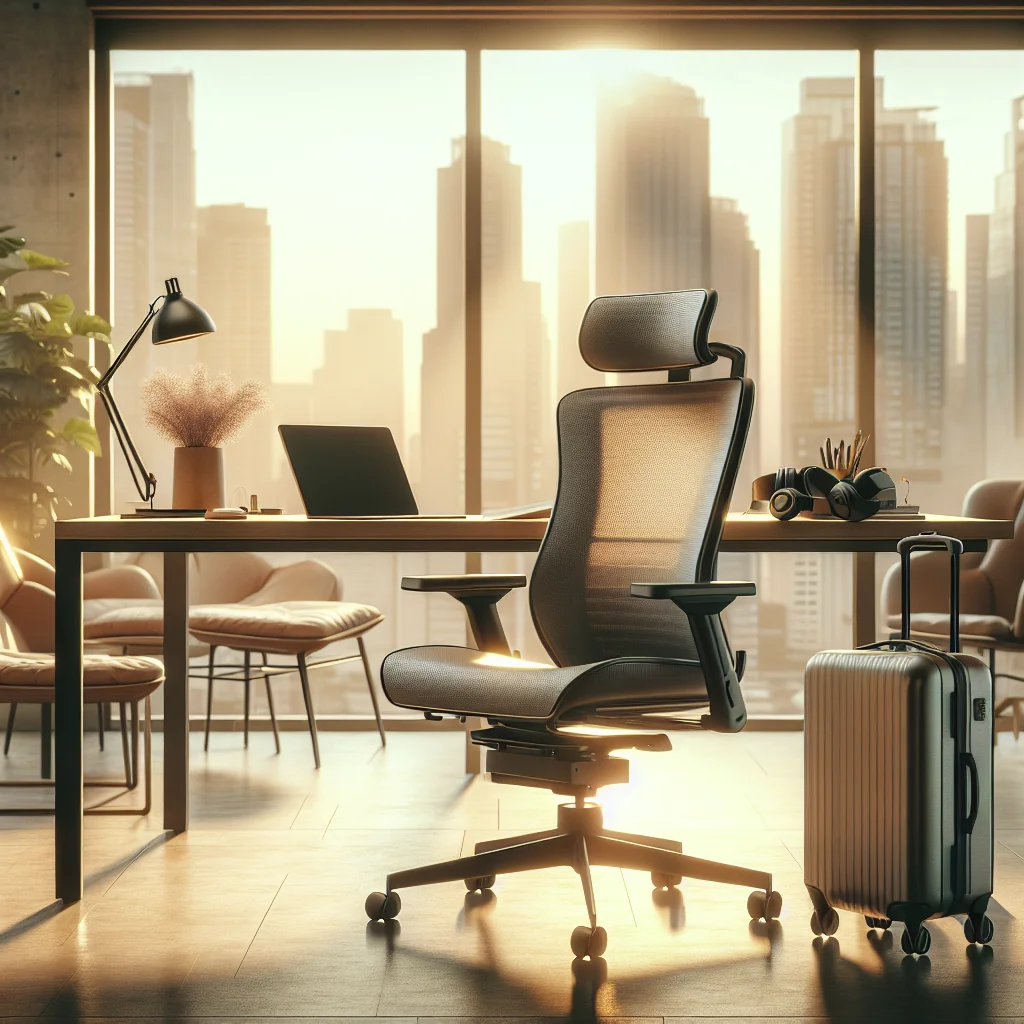
If you sit for hours, the chair affects your focus more than almost any other accessory. A dining chair or couch usually leads to slouching, neck pain, and tight hips. An ergonomic office chair supports your spine and helps you stay upright with less effort.
Look for adjustable seat height, lumbar support, and armrests that let your shoulders relax. Your feet should rest flat on the floor, knees at about a right angle, and lower back supported. If you move often, consider a mid-range ergonomic chair you keep at your home base, plus a compact seat cushion and lumbar pillow that fit in your luggage for temporary workspaces.
Portable comfort add-ons for any seat
A foldable seat cushion and inflatable or compressible lumbar pillow can turn almost any chair into a workable option. These comfort tools weigh little but make a big difference on long days.
Ergonomic Desk Setup: Simple Rules That Protect Your Body
An ergonomic desk setup does not need to be complex. A few key positions make a huge difference for comfort and posture. Focus on eye level, elbow angle, and neutral wrists first, then tweak from there.
For digital nomads, try to recreate the same basic layout in every space you use. The more consistent your setup, the less strain on your body when you move between locations.
Quick posture checklist for your workstation
Use this short check each time you sit down in a new place. In under a minute, you can fix the worst posture issues before they turn into pain.
- Place your feet flat on the floor or on a stable footrest.
- Sit back in the chair so your lower back touches the support.
- Adjust seat height so your knees are at about a right angle.
- Set keyboard and mouse so elbows rest close to your body.
- Raise the screen so the top is at or just below eye level.
- Keep wrists straight while typing and using the mouse.
- Check that shoulders feel relaxed, not lifted or tense.
Running through these steps at each new desk keeps your setup consistent. Over time, your body will start to notice when something feels off and you will adjust faster.
Standing Desk vs Sitting Desk: What Works Best?
Many remote workers ask whether a standing desk is better than a sitting desk. Your body prefers movement more than any single position. Long, fixed sitting is hard on your back and hips, but long, fixed standing can stress your feet and lower back too.
A sit-stand desk or a portable standing desk converter offers a balanced approach. At home, an adjustable desk lets you switch between sitting and standing during the day. On the road, a foldable laptop stand and a stack of books or boxes can raise your screen to standing height on a regular table.
Key differences between sitting and standing setups
The table below compares common desk options for remote workers and digital nomads.
| Desk Type | Main Benefit | Main Drawback | Best For |
|---|---|---|---|
| Fixed sitting desk | Simple, stable, easy to set up anywhere | Encourages long periods of sitting | Short work sessions or tight budgets |
| Fixed standing desk | Reduces sitting time and hip stiffness | Can cause leg and foot fatigue if overused | People who already sit a lot off the clock |
| Sit-stand adjustable desk | Lets you switch positions through the day | Costs more and is not travel-friendly | Home bases for full-time remote workers |
| Portable desk converter | Turns any table into a standing desk | Limited space and can shake a little | Digital nomads and renters who move often |
Use this comparison to match your desk choice to your lifestyle. Many nomads pick a simple sitting desk at home and rely on a light converter or laptop stand when they travel.
How to Fix Posture at Your Desk
Good posture at a desk starts with your base. Sit back in the chair with your lower back supported, rather than perching at the edge. Keep your ears over your shoulders, not in front of them, and avoid leaning into the screen.
Your elbows should rest close to your body at about a right angle, and your wrists should stay straight while typing. Raise the monitor so the top of the screen is at or just below eye level. If your feet do not reach the floor, use a box or footrest. These small changes reduce neck and shoulder strain, especially during long remote work sessions.
Simple movement habits that support posture
Even a perfect chair and desk will not help if you never move. Stand up at least once an hour, roll your shoulders, and look away from the screen for a few breaths to reset your body.
Work From Home Desk Setup Ideas for Focused Work
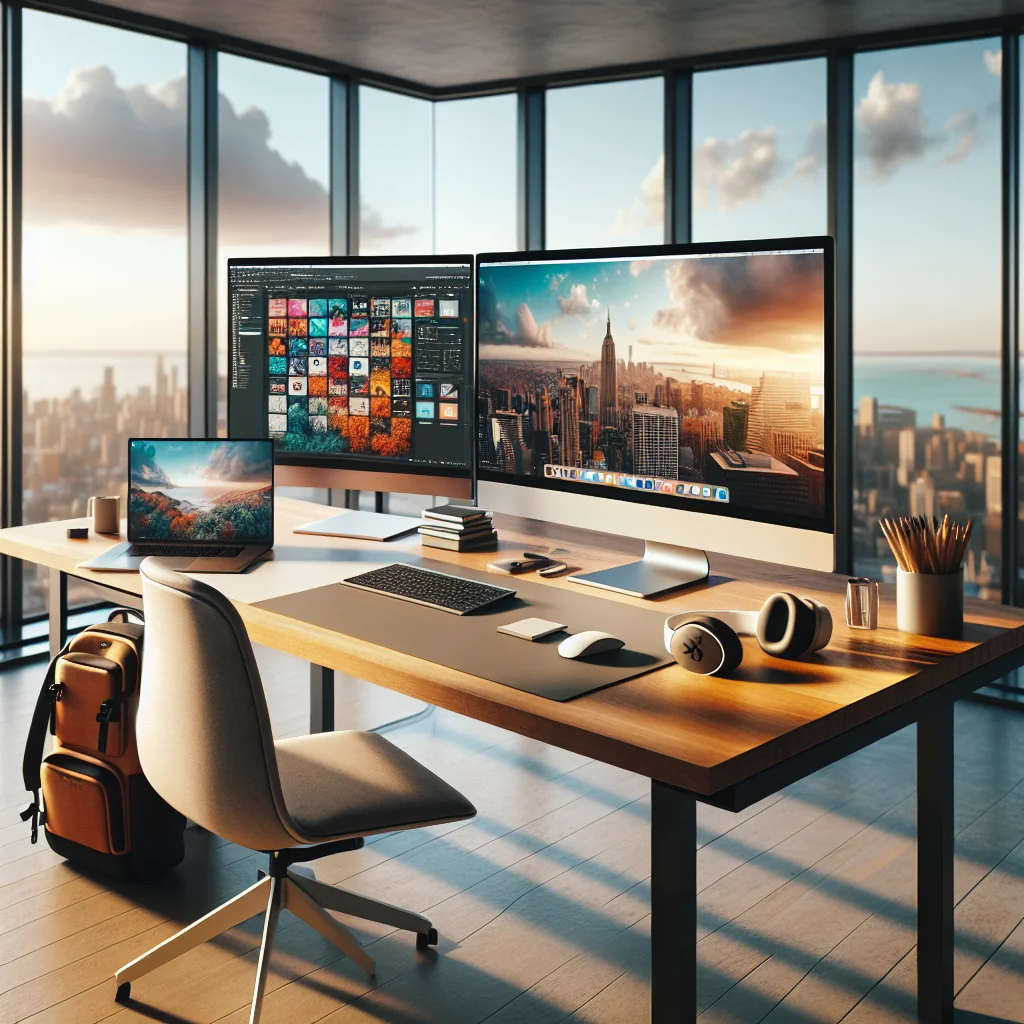
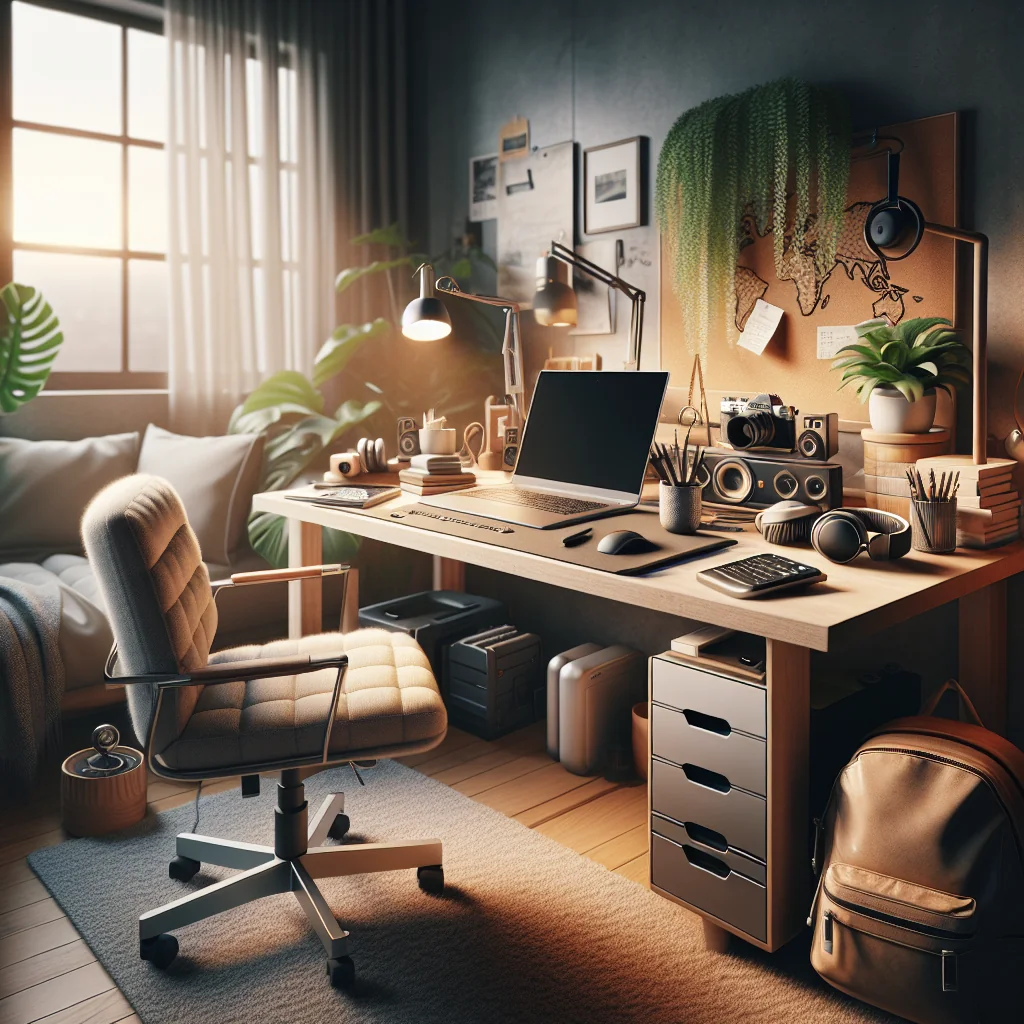
A smart work from home desk setup guides your attention and keeps clutter out of sight. Start with a clear surface, then add only what you use daily: laptop or monitor, keyboard, mouse, notebook, and maybe a plant or small personal item. Everything else can live in a drawer or a small box.
Digital nomads can use modular gear: a compact monitor you leave at home, plus a laptop stand, foldable keyboard, and travel mouse for the road. Arrange your desk so cables run away from your hands and arms, and keep your most-used items within easy reach.
Layout tips for small or shared spaces
In tight spaces, place your desk in a corner to reduce visual noise. Use vertical storage like shelves or wall organizers so your main surface stays clear for deep work.
Cable Management Ideas for a Clean, Portable Desk
Messy cables grab dust, snag your feet, and make packing a headache. Simple cable management turns a chaotic desk into a calm space. It also speeds up setup and teardown when you change locations.
- Use reusable cable ties or hook-and-loop straps to bundle chargers and USB cables.
- Label each cable near the plug so you know what belongs to which device.
- Run cables along the back edge of the desk using adhesive clips or a cable sleeve.
- Keep a small pouch in your bag for daily cables and a separate one for backup gear.
- Choose multi-port chargers to replace several bulky power bricks.
These small habits make your desk look calmer and make it easier to rebuild your setup in a café, co-working space, or rental apartment.
Minimalist Desk Setup: Less Stuff, More Focus
A minimalist desk setup suits digital nomads well because it keeps your gear light and your mind clear. The idea is to own fewer, better items that handle most tasks. This reduces visual noise and decision fatigue during your workday.
Pick one main input set (keyboard, mouse, headphones), one main viewing setup (monitor or dual monitors), and one or two comfort items. Avoid stacking gadgets that do the same job. The less you have to move and manage, the more energy you keep for deep work.
Essential gear categories for a minimalist nomad kit
Think in simple groups: posture helpers, input devices, audio and video, and power. If a new gadget does not improve one category in a clear way, you probably do not need it.
How to Build a Quiet Home Office
A quiet home office is important for calls, deep work, and a sense of calm. Start by choosing the quietest room you can, away from street noise or shared walls. Place your desk so your back is to a solid wall if possible; this often feels more secure and reduces distractions.
Soft materials help absorb sound: rugs, curtains, bookshelves with books, and fabric wall hangings. If you share space, set clear “do not disturb” times and use a visual signal, like a door hanger or small light, to show when you are on calls.
Noise control accessories that travel well
Simple foam earplugs, over-ear headphones, and a white noise app can turn noisy rentals or cafés into workable spaces. These small items earn a place on almost any list of must-have work from home accessories for nomads.
Home Office Sound Control for Remote Calls
Full sound blocking is often unrealistic for digital nomads, but you can still reduce echo and background noise. Focus on blocking noise from entering and absorbing sound inside the room. Heavy curtains on windows and draft stoppers under doors help with outside noise.
Inside, place a rug under your desk, add cushions or a fabric-covered board on the wall in front of you, and avoid bare, hard surfaces. A good pair of over-ear noise-reducing headphones is one of the most effective must-have work from home accessories for both home and travel.
Microphone tips for clearer voice calls
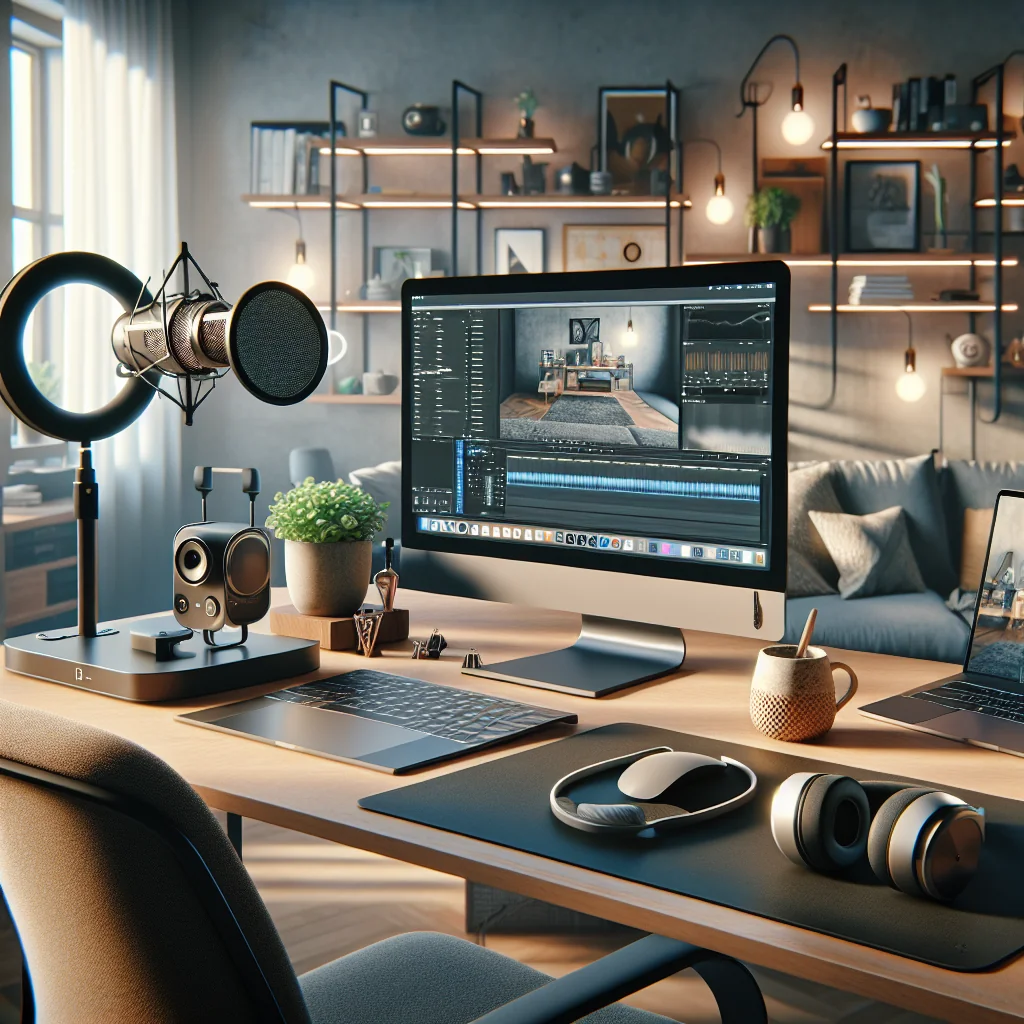
A simple USB microphone or a headset mic often sounds clearer than a laptop mic. Point the mic toward your mouth, keep it a short distance away, and speak at a steady volume for the best sound.
How to Set Up Two Monitors for Remote Work
A dual monitor desk setup can double your usable space and reduce constant window switching. Place the primary monitor directly in front of you and the second one to the side at a slight angle. Keep the tops of both screens at the same height to avoid neck strain.
For digital nomads, a lightweight portable monitor is a strong option. Use your laptop screen as one display and the portable monitor as the second. Mount both on stands or a dual monitor arm at home, then use a compact folding stand when you travel.
Best ways to use extra screen space
Keep active work on your main screen and place reference material, chats, or timelines on the second. This layout reduces the need to switch windows and helps you stay in the flow.
Best Monitor for Remote Work and Digital Nomads
The best monitor for remote work balances screen size, clarity, and portability. A monitor that is too large can overwhelm a small space, while a tiny screen strains your eyes. Look for a sharp display with good brightness and a stand that allows height adjustment or VESA mounting.
At home, many remote workers like a single larger monitor or two mid-sized ones. For digital nomads, a slim portable monitor that connects with a single cable offers a good mix of comfort and packability.
Eye comfort features to look for
Features like low blue light modes and matte screens can make long days easier. Also check that text looks crisp at your usual working distance so you do not need to lean in.
Best Lighting for Video Calls and Deep Work
Good lighting helps you look professional on video calls and reduces eye strain. Natural light from a window in front of you is ideal, but side or back light can cast shadows. If your room lighting is weak, a small desk lamp with a diffused bulb can soften your face on camera.
For consistent results, many remote workers use a compact ring light or panel light that clips to the monitor. Choose a light with adjustable brightness and color warmth so you can match it to different rooms and times of day.
Positioning your lights for better video
Place the main light slightly above eye level and in front of you. Avoid strong light directly behind you, which can turn you into a silhouette on camera.
Best Webcam for Online Meetings and Remote Teams
Most laptop webcams are passable, but a dedicated webcam often gives clearer video and better low-light performance. A good webcam should provide a sharp image, accurate colors, and a field of view that fits your space without showing clutter.
Look for a model that clips easily to a monitor or laptop screen and packs into a small case. If you move often, pick a webcam with a built-in privacy shutter and a simple USB connection for quick setup.
Framing and background tips
Position the camera at eye level and frame your head and shoulders. Keep the background simple, with a tidy wall or shelf, so the focus stays on you.
Best Keyboard for Typing All Day
The best keyboard for typing all day is the one that feels comfortable for your hands and shoulders. Many remote workers enjoy split or ergonomic keyboards that reduce wrist strain. Others prefer compact layouts that bring the mouse closer and cut down on reaching.
For digital nomads, a low-profile wireless keyboard is easier to pack. Choose a model with clear key labels, a layout you are familiar with, and a battery life long enough for travel days when charging is not easy.
Choosing between full-size and compact layouts
Full-size boards give you a number pad, which helps with spreadsheets. Compact boards free desk space and bring your mouse closer, which can feel better for your shoulder.
Best Laptop Stand for Desk and Travel
A laptop stand is one of the most important must-have work from home accessories for posture. Raising the screen to eye level helps keep your neck straight and shoulders relaxed. At home, a solid stand or even a stack of books can work, but for travel, a foldable stand is better.
Look for a stand that adjusts to different heights, holds your laptop firmly, and folds flat. Pair the stand with an external keyboard and mouse so your hands can rest at a comfortable height while the screen stays high.
Using a stand in cafés and co-working spaces
In shared spaces, pick a table with enough depth for the stand, keyboard, and mouse. Sit with your back to a wall if possible so your raised screen feels more private.
Digital Nomad Packing List for a Portable Home Office
A smart digital nomad packing list focuses on a small set of must-have work from home accessories that recreate your home setup anywhere. Think in categories: comfort, input, output, power, and backup. Pack items that solve problems you face most often.
Many nomads carry a laptop, foldable laptop stand, compact keyboard and mouse, portable monitor, noise-reducing headphones, webcam, small light, cable pouch, and a few comfort items like a travel lumbar pillow or seat cushion. Adjust the list to match your style of work and how often you move.
Balancing weight, space, and comfort
Lay all your gear out before a trip and ask what you used daily on your last journey. Remove anything that stayed in your bag the whole time, and you will end up with a lighter, more focused kit.
How to Work From Home Productively With the Right Gear
Gear alone does not guarantee focus, but it removes friction and discomfort that drain your energy. A supportive chair, ergonomic desk setup, clear lighting, and tidy cables create a space where your brain can stay on the work, not the setup.
Combine your must-have work from home accessories with simple routines: fixed start and end times, short breaks to stand or walk, and a quick daily reset of your desk. For digital nomads, rebuild the same layout in each new place as closely as you can. Familiar gear and habits help your mind switch into “work mode” faster, wherever you are.
Daily reset ritual for your workspace
At the end of each day, clear the desk, coil cables, and place your core tools in the same spots. This small habit keeps your space ready for deep work the next morning, whether you are at home or on the road.