Ergonomic Office Chairs for Productivity: A Practical, Body-Friendly Blueprint
Ergonomic office chairs for productivity are about more than comfort. They support your body, reduce pain, and help you stay focused for longer work sessions. A good chair becomes the base of your workspace, whether you sit in a home office, a shared space, or a small apartment.
This blueprint shows how ergonomic chairs fit into a full setup: desk height, monitors, lighting, and daily habits. The goal is simple and clear: build a healthy, repeatable workspace that helps you do better work with less strain.
Blueprint Step 1: Why Ergonomic Office Chairs Matter for Productivity
A well-designed ergonomic chair supports a neutral body position so muscles stay relaxed. When your body feels stable and supported, your mind can focus on work instead of discomfort. Over a long day, that comfort often means more consistent output and fewer breaks from pain.
Productivity is not about pushing harder. It is about working in a way that your body can handle day after day. An ergonomic office chair reduces pressure on your spine, hips, and shoulders, which can lower the risk of aches that break your focus.
How Comfort Links to Focus and Energy
Comfort and focus are closely connected. Constant fidgeting, shifting, or stretching to ease discomfort pulls attention away from tasks. A chair that supports your posture lets you settle into deep work with less effort. Over time, this reduces fatigue and helps you finish tasks faster and with better quality.
Blueprint Step 2: Key Features of Ergonomic Office Chairs for Productivity
The most effective ergonomic office chairs share a few core features. These features help you adjust the chair to your body and your desk instead of forcing your body to adapt. Even if you cannot buy a premium model, understanding these points helps you judge any chair you use.
Look for the features below when you plan to sit for long stretches of time.
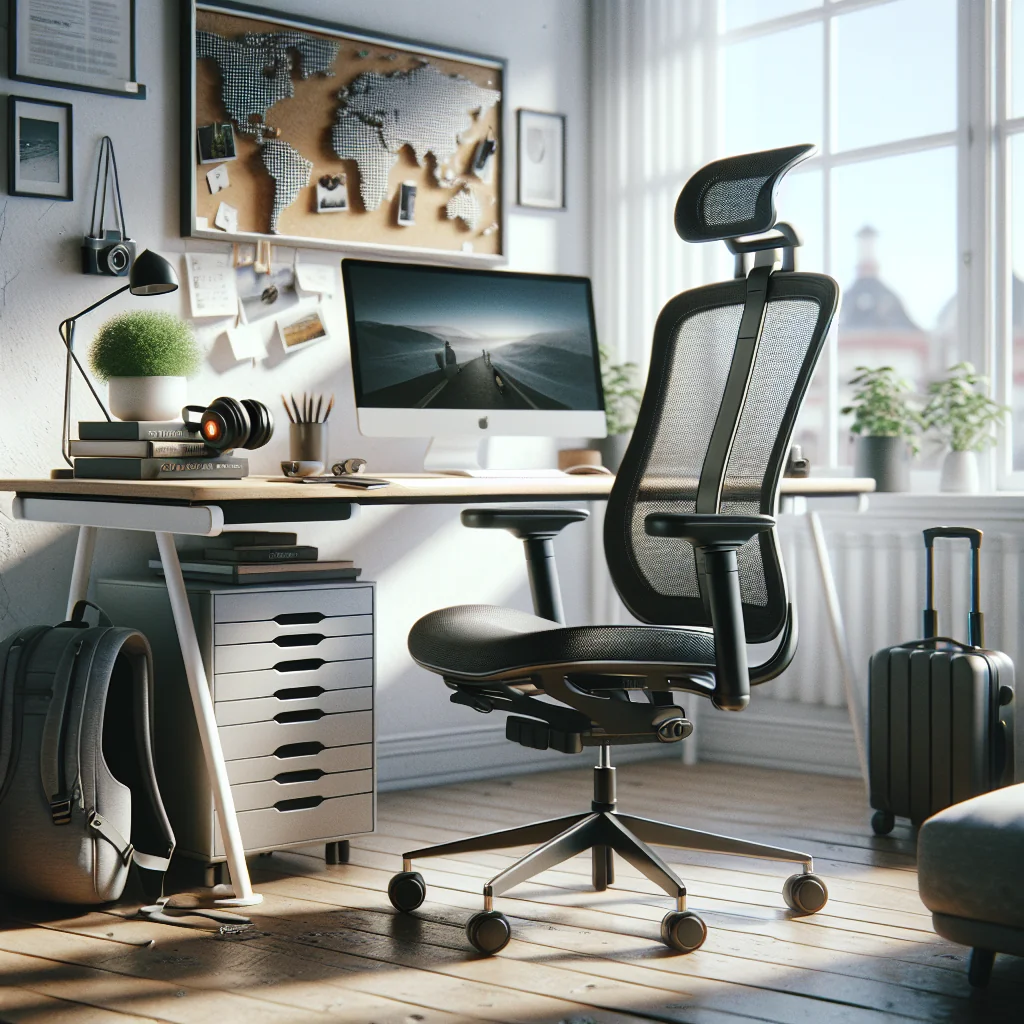
- Adjustable seat height: Feet flat on the floor, knees close to hip level.
- Seat depth control: A small gap between the seat edge and the back of your knees.
- Lumbar support: Firm support at the natural curve of your lower back.
- Backrest recline: A slight recline to reduce load on the spine.
- Adjustable armrests: Height and width changes so shoulders can relax.
- Breathable material: Mesh or fabric that stays cool during long sessions.
If your current chair lacks some of these features, you can still improve it. Add a lumbar cushion, a seat pad, or a simple footrest. These small upgrades can turn a basic chair into a more ergonomic option for daily work.
Quick Test: Does Your Chair Support You Well?
Sit back fully, place your feet flat, and rest your arms on the armrests. If your lower back feels supported, your knees do not press into the seat edge, and your shoulders feel loose, the chair is doing a decent job. If you feel pressure points or must hold yourself upright with effort, you likely need adjustments or add-ons.
Blueprint Step 3: Aligning Chair, Desk, and Monitors for Better Posture
An ergonomic office chair works best as part of a full ergonomic desk setup. Your body, desk, and screens should line up so your joints stay in neutral positions. Poor alignment can undo the benefits of even the best chair.
Start by setting your chair height so your feet rest flat and your thighs are roughly parallel to the floor. Then adjust your desk and monitor height to match that base position. If the desk is too high, raise the chair and add a footrest. If the desk is too low, lift your screens with a stand or stacked books.
Ideal Sitting Alignment at a Glance
Think of your body in simple angles. Hips and knees near 90 degrees, elbows close to 90 degrees, and eyes looking slightly down at the top third of the screen. These angles reduce strain on joints and muscles and help you maintain posture with less effort.
Blueprint Step 4: Sitting vs Standing and Finding the Right Mix
Many people ask whether a standing desk is better for productivity than a sitting desk. For most workers, a mix of both tends to work best. Long periods of still sitting can stress your back and hips. Long periods of still standing can bother your feet and lower legs.
If a full standing desk is not an option, use a simple converter or place your laptop on a higher surface for short standing sessions. Alternate between sitting in your ergonomic chair and standing in blocks of work. Movement and variety, not a single perfect position, support long-term focus and comfort.
How to Rotate Positions Through the Day
Plan your day in cycles. For example, sit for one or two focused work blocks, then stand for a short, clear task like email or planning. This pattern keeps blood flowing and prevents stiffness, without constant disruption to your schedule.
Blueprint Step 5: Step-by-Step Chair Adjustment for Healthy Posture
Good desk posture is less about forcing yourself to “sit up straight” and more about using the chair to support your natural curves. Follow this simple sequence to dial in your setup. Make small changes and test each one for a few minutes.
- Set seat height: Raise or lower the seat so feet are flat and knees are near hip height.
- Adjust seat depth: Slide the seat so you have a small gap behind your knees.
- Place your hips back: Sit all the way back so hips touch the backrest.
- Fit lumbar support: Adjust the support or add a cushion to your lower back curve.
- Set backrest recline: Choose a slight recline that feels natural, not slouched.
- Tune armrests: Raise or lower them so shoulders feel loose and elbows rest lightly.
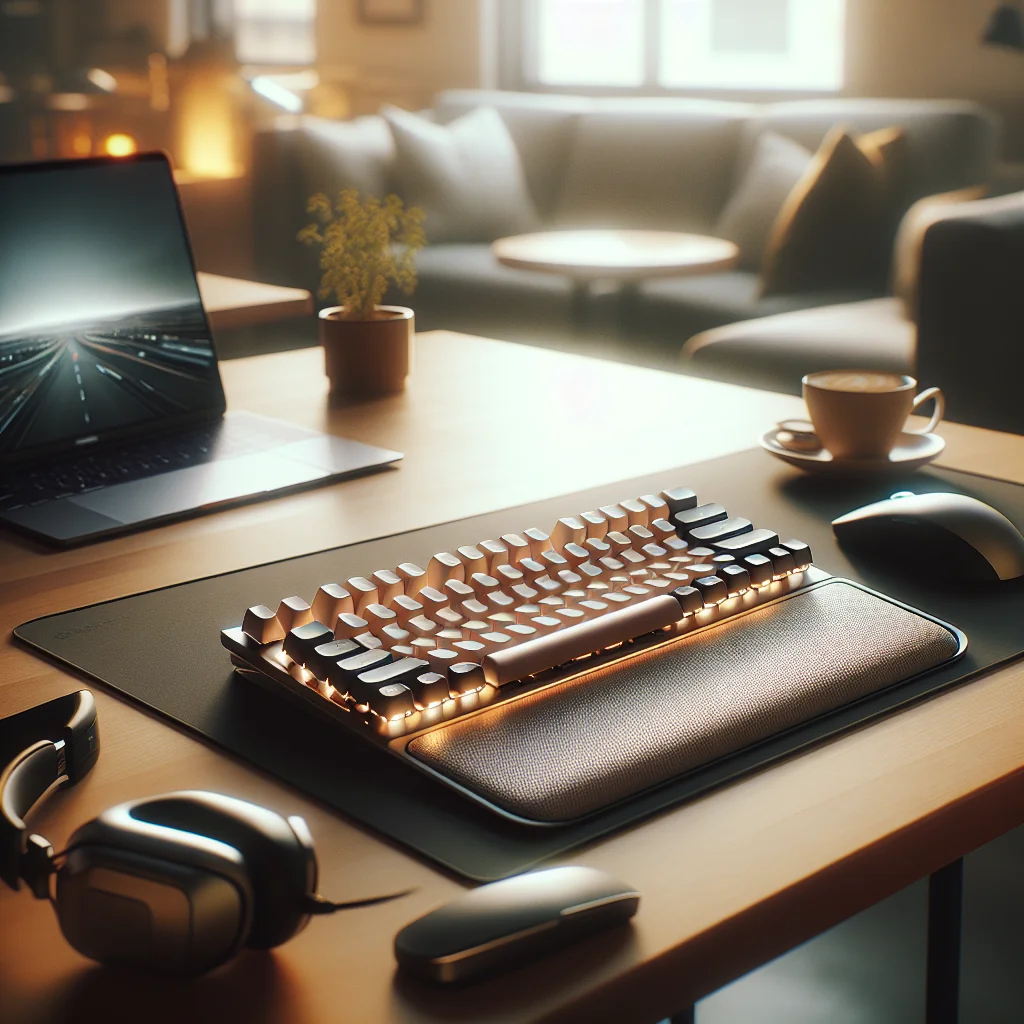
- Align keyboard and mouse: Place them so forearms are roughly parallel to the floor.
- Center the monitor: Put the screen directly in front of you, with the top near eye level.
Once this setup feels right, take a photo or write down the settings. That record makes it easier to return to a productive posture after someone moves your chair or you change locations.
Blueprint Step 6: Creating a Home Office That Supports Deep Work
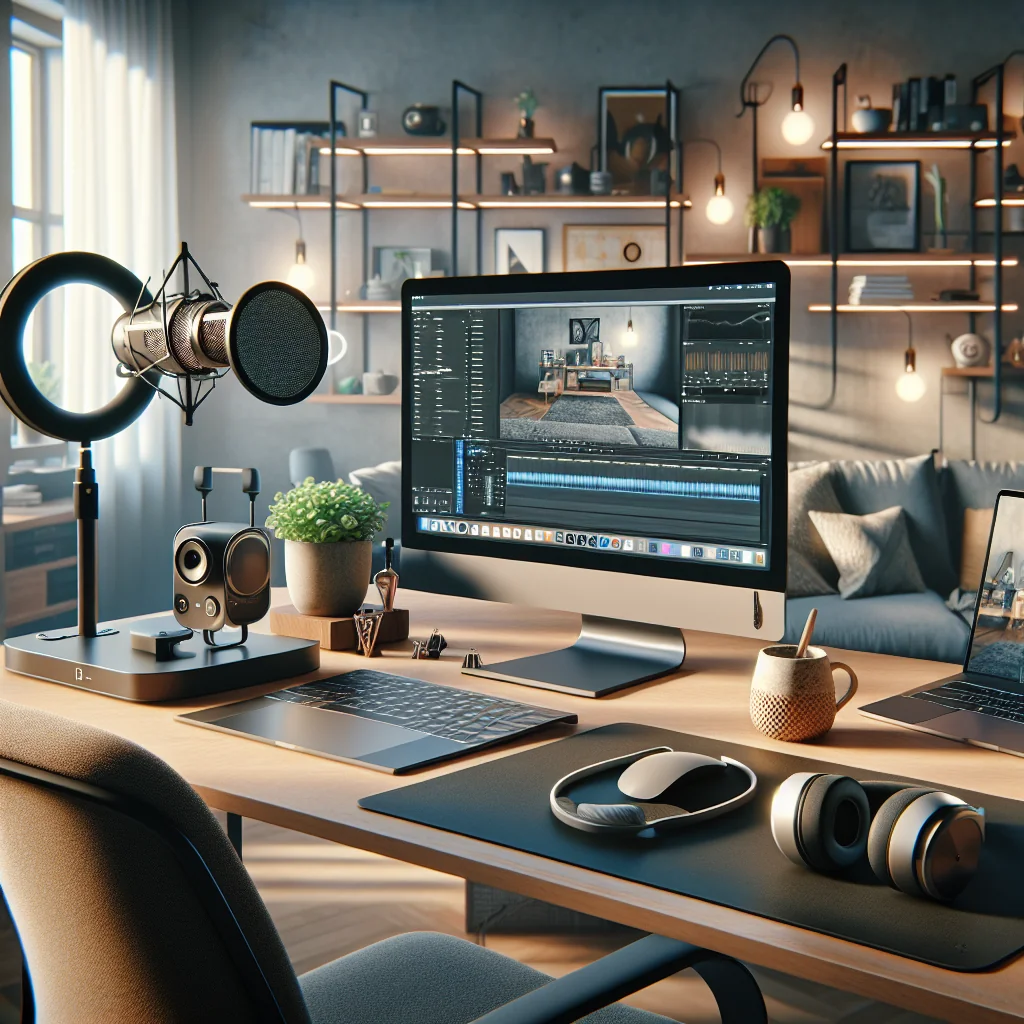
The best home office layout supports long, focused work while protecting your body and senses. Start with the essentials: chair, desk, and monitors. Then refine light, sound, and tools that help you stay on task.
Try to keep a repeatable layout. If you find a setup that feels great, capture it with photos from a few angles. In a new space, use those photos as a guide so your chair height, screen distance, and keyboard placement stay familiar. That familiarity can help you drop into deep work faster.
Balancing Comfort, Focus, and Space Limits
Even in a small room, you can support deep work by choosing a clear zone for work only. Place your ergonomic office chair and desk where you have enough legroom and minimal visual clutter. Keep only the tools you use daily on the desk, and store everything else out of sight.
Blueprint Step 7: Desk Setup Ideas for Small or Shared Spaces
Many people work in small apartments or shared rooms. Space limits do not remove the need for a healthy setup. They just require more careful choices. A compact desk that fits your chair and allows leg movement is more important than a wide surface full of accessories.
Use vertical space with monitor arms, wall shelves, and slim lamps to keep the desktop clear. A folding or wall-mounted desk can help if you need to reclaim space after work. Whatever you choose, always prioritize chair position and screen height over decor or extra items.
Keeping a “Portable” Workspace Layout
Store your main tools together in a box or bag so you can set up and pack down quickly. Include your keyboard, mouse, laptop stand, and any cushions you use. This habit lets you recreate a productive zone even if you must share a table with others.
Blueprint Step 8: Minimalist Desk Setup and Cable Management
A minimalist desk layout supports focus by cutting visual noise and decision fatigue. The fewer objects on your desk, the easier it is for your brain to stay on one task. This approach pairs well with an ergonomic chair because both aim to reduce friction while you work.
Simple cable management helps keep that clean look. Use one power strip under the desk and a few reusable ties or clips. Route cables down the back of the desk or along the legs so they stay out of sight and do not catch your feet or chair wheels.
Why a Clear Desk Helps Your Body Too
When your desk is clear, you can place your keyboard, mouse, and documents exactly where your body needs them. You are less likely to twist, reach, or hunch to work around clutter. That small change can reduce shoulder and neck strain over time.
Blueprint Step 9: Noise, Light, and Other Productivity Factors
Even the best ergonomic office chair for productivity cannot help if you are constantly distracted. Sound and light play a big role in how well you can focus. You may not be able to rebuild your whole room, but small changes still help.
Soft materials like rugs, curtains, and upholstered furniture can reduce echo and harsh sound. Place your desk and chair away from busy windows or doors if possible. For many people, a simple fan or white noise source can mask sudden sounds that break concentration.
Lighting for Comfort and Clear Screens
Good lighting reduces eye strain and helps you stay alert. Aim for even light across your work area, with a soft source in front of you for video calls. Avoid strong light directly behind your screen, which can cause glare and make you lean forward to see better.
Blueprint Step 10: Choosing and Positioning Monitors Efficiently
A clear, well-placed monitor can boost productivity as much as a good chair. A screen that is too low, too high, or too far away can cause neck strain and squinting. A monitor that is too small or crowded with windows can slow your work.
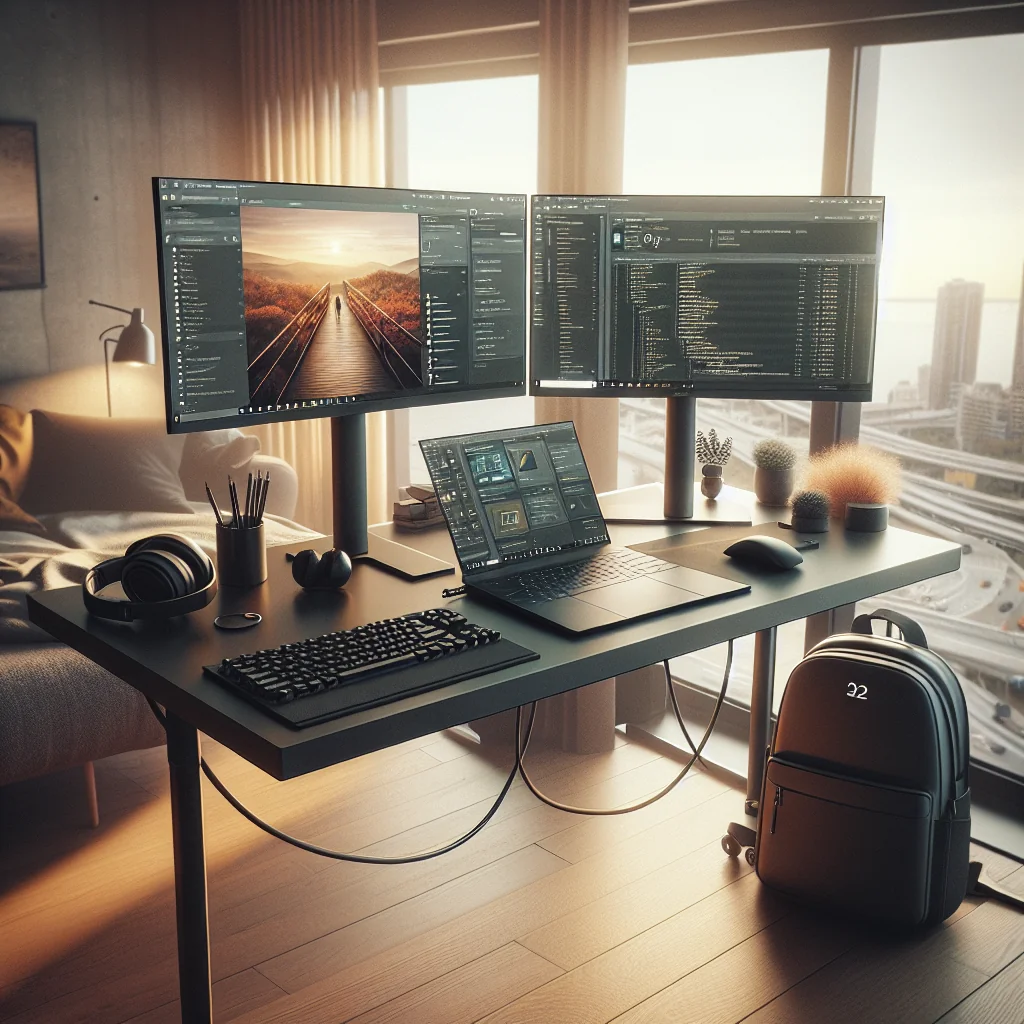
Place your main monitor directly in front of your chair, at arm’s length for most people. The top of the display should sit near eye level. If you use a second screen, set it next to the main one at the same height and distance, angled slightly toward you.
Using Two Screens Without Hurting Your Neck
If you use two monitors often, choose one as your primary and keep it directly in front of you. Place the second to the side and turn your chair, not just your neck, when you work on it for more than a few seconds. This habit helps prevent repeated twisting that can lead to stiffness.
Blueprint checkpoint: compare chair and setup elements that support productivity.
| Element | Helpful Setting | Common Problem |
|---|---|---|
| Seat height | Feet flat, knees near hip level | Feet dangling or knees much higher than hips |
| Seat depth | Small gap behind knees | Seat pressing into back of legs |
| Lumbar support | Firm support at lower back curve | Flat backrest or cushion too high or low |
| Armrests | Elbows at 90 degrees, shoulders relaxed | Armrests too high, causing raised shoulders |
| Monitor height | Top of screen near eye level | Screen too low, causing neck bending |
| Desk layout | Keyboard and mouse close and centered | Reaching far or twisting to one side |
Use this table as a quick check of your own setup. If you spot one of the common problems, adjust that element first and see how your comfort and focus change over a few days.
Blueprint Step 11: Portable Gear That Makes Any Chair More Ergonomic
Not everyone can choose every chair they use. Many people split time between home, office, and shared spaces. A small set of portable gear can help you turn almost any basic chair and table into a more ergonomic station.
Focus on items that improve posture and reduce strain rather than on extra gadgets. A few well-chosen tools can support your body all day without taking much space in a bag or drawer.
Building a Simple “Work Comfort” Kit
Consider building a compact kit that always stays ready. Include a foldable laptop stand, a light external keyboard, a travel mouse, and a small lumbar cushion. Add a few cable ties and a compact power strip if you move between rooms or locations often.
Blueprint Step 12: Habits That Boost Productivity Beyond the Chair
An ergonomic office chair for productivity is a strong foundation, but daily habits still shape how much you get done. Use your setup as a cue for focused work. When you sit down, close extra tabs, silence non-essential alerts, and choose one clear task to start.
Break your day into blocks: focused work, meetings, and light admin tasks. Stand, stretch, or walk briefly between blocks. Over time, your body and mind will link your ergonomic setup with a calm, focused state. That link makes it easier to do deep work with less effort, wherever you sit.