Keyboard Features for All‑Day Typing: A Digital Nomad’s Guide
If you type for a living, the keyboard is your main work tool. For digital nomads and remote workers, the right keyboard features for all-day typing can mean the difference between focused work and sore wrists, noisy keys, and constant fatigue. This guide walks through the specific features to look for and how your keyboard fits into a healthy, portable work setup.
Why Keyboard Choice Matters for Long Remote Sessions
Remote work often means long sessions at a laptop in less-than-ideal spaces. Even if you have a good chair and desk, a poor keyboard can undo that effort. Bad key feel, the wrong size, or awkward angles can lead to pain in your fingers, wrists, and shoulders.
Digital nomads move between coworking spaces, cafés, and short-term rentals. That makes a reliable, comfortable keyboard part of your essential work gear and your wider travel packing list. A good board helps you type faster, stay accurate, and reduce strain, even when the rest of the setup is temporary.
Think of the keyboard as the anchor of your desk setup. Once you choose a board that fits your body and style, you can build the rest of your minimalist or dual-monitor desk layout around it.
Key Ergonomic Keyboard Features for All‑Day Typing
Ergonomics is about reducing strain while you work. For all-day typing, small design choices add up over hours. Even if you already sit well, a keyboard with the wrong shape or height can still pull your shoulders forward or twist your wrists.
Look for these ergonomic keyboard features if you type for many hours per day:
- Low, neutral wrist angle: A flat or slightly negative tilt keeps wrists straight instead of bent upward.
- Split or curved layout (optional): A split or curved board lets your hands rest near shoulder width, easing shoulder and neck tension.
- Short key travel with clear feedback: Keys that actuate easily but feel distinct reduce finger force and mis-presses.
- Soft but stable key feel: Keys should not feel mushy or harsh; a consistent feel lowers fatigue.
- Comfortable spacing: Full-size or compact layouts with standard spacing help avoid cramped fingers.
Combine a good keyboard with a laptop stand that raises the screen to eye level. That way you can keep shoulders relaxed, elbows near your sides, and wrists in line with your forearms for the whole day.
Positioning the Keyboard for Less Strain
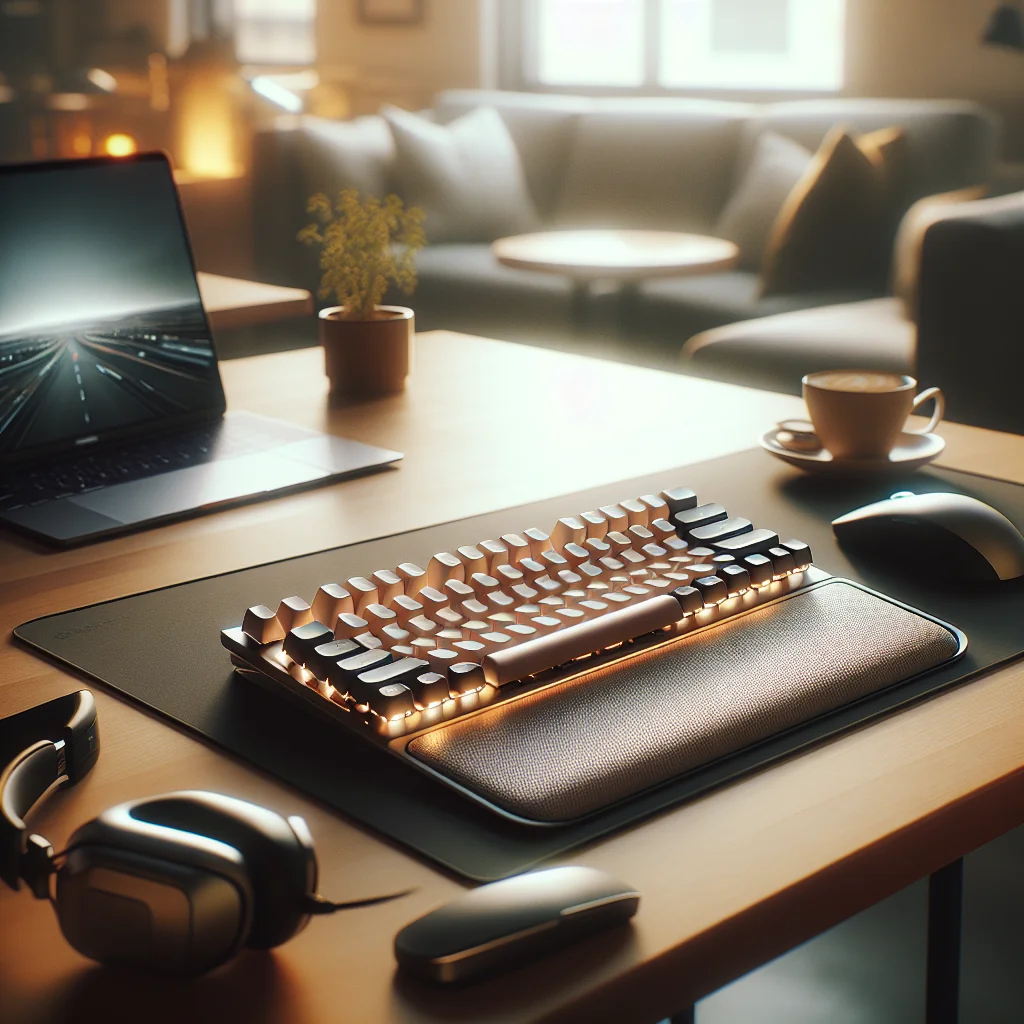
Placement matters as much as design. Keep the keyboard close to the front edge of the desk, so your elbows stay under your shoulders instead of reaching forward. If the desk edge feels sharp, use a soft desk mat or wrist rest, but keep wrists floating in a neutral line during active typing.
Switch Types and Key Feel for Heavy Typists
The best keyboard for typing all day depends heavily on switch type and key feel. These details decide how loud the keyboard is, how much force you need, and how satisfying each keystroke feels. For a quiet home office, switch choice also affects noise for people in the next room.
Broadly, you will see three main switch styles: mechanical, scissor (like laptop keyboards), and rubber dome. Mechanical switches offer the most variety and are often preferred for serious typing, but modern low-profile scissor boards can also work well for digital nomads who need lighter gear.
If you plan to build a quiet home office or care about sound in shared spaces, lean toward quieter switch types. Soft linear or quiet tactile switches are easier on your ears and on anyone sharing your space, especially during video calls.
Comparing Common Keyboard Switch Options
The table below compares popular switch types for all-day typing comfort.
| Switch Type | Typical Feel | Noise Level | Best For |
|---|---|---|---|
| Mechanical Linear | Smooth, consistent, no bump | Low to medium | Fast typists who like light, quiet keys |
| Mechanical Tactile (non-clicky) | Noticeable bump, clear feedback | Medium | Writers who want feedback without loud clicks |
| Mechanical Clicky | Bump plus sharp click | High | Solo workspaces where sound is not a concern |
| Scissor (laptop-style) | Short travel, crisp feel | Low to medium | Travel setups and compact desks |
| Rubber Dome | Softer, less defined | Low | Budget builds and light typing |
For most people who type all day, a quiet tactile or linear switch offers the best mix of comfort and sound control. If you share a space, avoid loud clicky switches, even if the feel is satisfying.
Noise, Sound, and a Quiet Remote Office
Keyboard sound matters if you share your home, work from cafés, or live in thin-walled apartments. Loud, clicky switches can bleed into calls, even with a good microphone and webcam. For digital nomads, that can be a real issue in small rentals.
To keep your workspace calm, pair a quiet keyboard with basic sound control. Soft furnishings, rugs, and curtains absorb sound while your keyboard’s dampened switches keep typing noise low. That makes it easier to focus and helps you sound more professional in calls.
Less background clatter also means fewer distractions and less mental fatigue over long days of writing, coding, or messaging. A quieter setup supports better focus and a more relaxed mood.
Layout, Size, and Portability for Digital Nomads
Layout and size matter for both comfort and travel. A full-size keyboard includes a number pad, which is great if you work with spreadsheets at a permanent home office. For a digital nomad packing list, a compact layout is often easier to carry and fits better on small café tables.
Many remote workers choose a tenkeyless (no number pad) or 75% layout to balance comfort and portability. These sizes keep arrow keys and function keys while trimming width. That extra space on the desk lets you keep your mouse closer, reducing shoulder reach.
Portability also shapes your home setup. A light, wireless board can move easily between a sitting desk and a standing area, or between your main desk and a secondary spot like a balcony table for short sessions.
Choosing a Layout That Matches Your Work
If you enter numbers all day, a full-size board or a separate number pad can save time. If you write, code, or handle email, a tenkeyless or 75% layout usually gives enough keys without wasting desk space. Very compact 60% boards suit travel but may hide arrow or function keys behind layers, which some people dislike for all-day typing.
Connecting Your Keyboard in Multi‑Device Setups
Remote workers often juggle several devices: a work laptop, a personal laptop, maybe a tablet. A good keyboard for all-day typing should connect smoothly to all of them. Multi-device Bluetooth boards can switch between two or three machines with a key press.
This is especially helpful in a dual-monitor or docked setup. A single keyboard and mouse can control everything, keeping your desk less cluttered and making context switching faster.
Stable wireless connections also support a clean desk. Fewer cables mean less visual noise, easier cleaning, and more room for notebooks or a coffee mug.
Wired vs Wireless for All‑Day Use
A wired keyboard removes battery worries and latency concerns, which some typists enjoy. Wireless boards offer more freedom to move and pack, which suits digital nomads and small spaces. For all-day typing, choose reliable wireless gear or keep a cable handy as a backup.
Integrating Your Keyboard into an Ergonomic Desk Setup
A keyboard does not work in isolation. The best keyboard features for all-day typing shine only when the rest of the workspace supports good posture. Start with your chair and desk height, then fine-tune keyboard placement.
Adjust your chair so your feet rest flat on the floor and your knees are at roughly hip level. Raise or lower the chair so your forearms are level with the keyboard. Your shoulders should stay relaxed, not hunched.
For an ergonomic desk setup, keep the keyboard close to the desk edge. This prevents your wrists from resting on sharp edges and keeps your elbows under your shoulders. A soft wrist rest can help, but neutral wrist angle and correct height matter more.
Step‑by‑Step Keyboard Placement Checklist
Use this quick sequence to dial in comfortable keyboard placement for all-day typing.
- Set chair height so feet are flat and knees are near hip level.
- Adjust desk or keyboard tray so forearms are parallel to the floor.
- Place the keyboard close to the desk edge, within easy reach.
- Center the keyboard with your body and main screen.
- Check that wrists stay straight and float above the keys while typing.
- Move the mouse close to the keyboard to reduce shoulder reach.
- Test for 10–15 minutes and tweak height or distance as needed.
Revisit this checklist each time you change location, such as moving from a home office to a café or coworking space. Small changes in desk height or chair style can affect your posture more than you expect.
Standing vs Sitting: Keeping the Keyboard Comfortable
Many remote workers switch between standing and sitting to reduce back pain. The keyboard must be comfortable in both positions. If the desk is too high while standing, your shoulders will creep up; too low and you will hunch forward.
At a standing desk, adjust height so your elbows are about 90 degrees with forearms parallel to the floor. The keyboard should sit directly under your hands, not far away. Consider a separate keyboard tray if your desk does not go low enough.
When you sit, keep the same elbow angle and neutral wrist position. If you use a laptop with an external board, a laptop stand brings the screen up while the keyboard stays at a healthy height, which helps maintain good posture all day.
Switching Positions Without Losing Focus
Change between sitting and standing during natural breaks, such as after a meeting or at the end of a writing block. Each time you switch, quickly check keyboard height, distance, and centering. This habit keeps your hands and shoulders happy across long days.
Desk Organization and Cable Management Around Your Keyboard
Good cable management keeps your workspace clear. Even wireless keyboards need charging cables, plus cables for monitors, docks, and chargers. A messy desk can drag on focus and make your best keyboard feel less enjoyable to use.
Route cables along the back edge of the desk and down one leg if possible. Simple clips, sleeves, or ties bundle wires from your keyboard, mouse, and monitors. This supports a clean, minimalist desk and reduces snagging when you move the keyboard to a different position.
A tidy surface also helps when you brainstorm layout ideas. You can slide the keyboard aside to write on paper, set up a tablet, or reposition your laptop without fighting a tangle of cords.
Creating Space for Typing and Thinking
Leave a clear zone in front of your keyboard that fits your hands and a notebook. Keep drinks to the side, away from the keys, to lower spill risk. A clear, calm area around the keyboard makes long typing sessions feel less cramped and more focused.
Monitors, Lighting, and Video Calls: How the Keyboard Fits In
For deep work, your keyboard works closely with your screens. A good monitor lets you see text clearly without leaning forward. Place the keyboard directly in front of your main display so your neck stays centered.
If you use two monitors, center the keyboard between them or under the primary screen you use for typing. This reduces twisting and keeps your hands aligned with your line of sight.
Good lighting also matters. Soft front light and minimal glare on your screens keep your eyes relaxed. A quiet keyboard helps during calls, since loud keys can distract people even if you have a strong webcam and microphone.
Reducing Visual and Audio Distractions
Keep bright lights out of your direct line of sight and off glossy keycaps. If you use backlighting, choose a low level that lets you see keys without glare. Combine this with a quiet switch choice to keep both your eyes and ears relaxed through long workdays.
Building a Quiet, Productive Workspace Around Your Keyboard
The keyboard is often the loudest part of a remote setup. If you want a quiet workspace, choose soft switches, add a desk mat under the board, and use simple sound control like rugs and door seals. These small steps cut echo and key noise.
A comfortable, quiet keyboard also supports productive work. You can type early or late without disturbing others, and your own brain gets fewer sharp sound spikes during long writing or coding sessions.
Combine this with a stable chair, a height-adjusted desk, and a calm visual environment. Together, these pieces turn your keyboard from a simple input device into the core of a focused, sustainable workday.
Choosing the Right Keyboard for Your Digital Nomad Lifestyle
For digital nomads, the best keyboard for typing all day must balance comfort, portability, and durability. Look for a solid build that can handle travel, a layout that suits your work, and wireless options for flexible setups in rentals and coworking spaces.
Think about how the keyboard fits your entire gear list: laptop stand, monitors, webcam, and other essentials. A compact, reliable board often earns a permanent place in your packing list because it makes almost any table feel like a real office.
Once you find a keyboard that feels right, build your home or travel setup around it. Adjust your chair and desk, refine cable management, plan lighting for calls, and arrange screens to support your typing posture. That way, your hands, wrists, and mind can handle all-day typing, no matter where you work.