Improve Posture While Working Remotely: Gear and Setup Guide for Digital Nomads
To improve posture while working remotely, you need more than a few stretches. Your chair, desk height, screens, lighting, and even sound all affect how your body feels after long days online. For digital nomads and home‑office workers, smart gear choices can turn a painful setup into a comfortable, productive base.
This guide walks through posture-friendly gear and setups, from the best chair for sitting all day to dual monitors, lighting, and packing lists. The focus is practical: what to buy, how to place it, and how to keep your body in a neutral, relaxed position while you work.
Build a Spine-Friendly Base: Best Chair and Desk for All-Day Work
Your chair and desk form the base of your posture. If these are wrong, no amount of stretching or gadgets will fully fix the problem. Start with the surfaces that support you for hours.
Choosing a supportive chair for long remote work days
A good work chair keeps your spine in a neutral “S” curve and lets your muscles relax. For remote work or digital nomad setups, choose a chair that can adapt to different desks and body types so your posture stays stable even when your location changes.
Key features for an all-day chair:
- Adjustable seat height so your feet rest flat and knees are near 90 degrees
- Firm lumbar support that fits the curve in your lower back
- Seat depth adjustment so you have a small gap behind your knees
- Armrests that adjust in height and width so shoulders can relax
- Breathable seat and back material to stay comfortable in warm rooms
If you travel often, you may not always have a full ergonomic chair. Consider a compact lumbar support cushion or portable seat wedge you can add to almost any chair to keep your lower back supported and reduce slouching.
Ergonomic desk setup and sitting vs standing options
An ergonomic desk setup keeps your joints at gentle angles and your screen at eye level. Whether you use a standing desk or sitting desk, the goal is the same: neutral posture with minimal strain on your neck, shoulders, and wrists.
For a sitting desk, set desk height so your forearms are level with the desk and your elbows are near 90 degrees. Your shoulders should rest down, not hunch up. If the desk is too high and not adjustable, raise your chair and use a footrest or a sturdy box under your feet so your legs stay supported.
For a standing desk, raise the work surface so your elbows stay around 90 degrees with relaxed shoulders. Use a standing mat to reduce pressure on feet and joints. Keep your weight shifting gently rather than locking your knees. Alternate between sitting and standing through the day instead of standing for hours in a row.
Sitting versus standing is less about one “winning” and more about movement. The best posture is the next one. Aim to change position every 30–60 minutes, even if it is just a short walk or a few stretches away from the screen.
How to Fix Posture at Your Desk Step by Step
Once you have a desk and chair, small changes in position can still make a big difference. Use this simple process to reset your posture any time during the day and reduce strain from remote work.
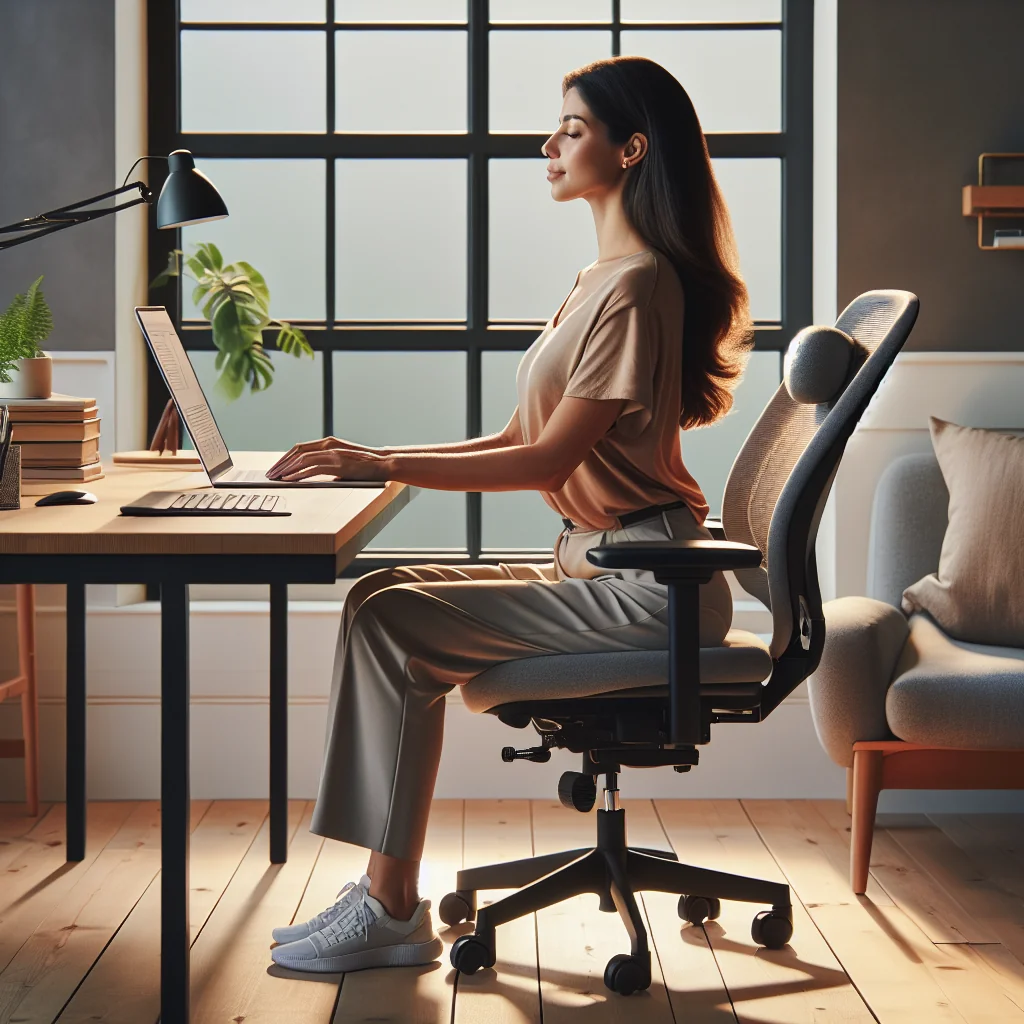
- Sit back in your chair so your lower back touches the backrest, then adjust lumbar support to fill the natural curve.
- Place your feet flat on the floor or on a footrest; avoid crossing your legs for long periods.
- Adjust chair height so your knees are level with or slightly below your hips.
- Set armrests so your elbows rest at about 90 degrees and your shoulders feel relaxed, not raised.
- Position your keyboard so your wrists stay straight, not bent up or down; keep it close to your body.
- Raise your monitor or laptop screen so the top of the screen is near eye level.
- Pull the screen to about an arm’s length distance to avoid leaning forward.
- Relax your jaw and neck, gently tuck your chin, and imagine a string lifting the top of your head.
Repeat this check a few times a day, especially after long calls or deep-focus sessions. Over time, your body will learn this neutral position as the default, and slouching will feel less natural and less comfortable.
Compare Common Remote Work Setups for Posture
Not every remote worker has a full office, especially digital nomads. Different setups affect your posture in different ways, and understanding these trade-offs helps you improve posture while working remotely even in tight spaces.
Overview of posture pros and cons for typical remote work setups:
| Setup Type | Main Posture Benefits | Main Posture Risks | Quick Fixes |
|---|---|---|---|
| Kitchen table with regular chair | Stable surface, space for keyboard and mouse | Seat often too high or low, no lumbar support | Add cushion for height, lumbar roll, use footrest |
| Sofa or bed with laptop | Comfortable for short sessions | Deep slouch, bent neck, twisted spine | Limit time, use lap desk, sit upright with pillows |
| Full desk with external monitor | Best screen height control, more neutral neck angle | Risk of monitor too far or too low | Raise monitor, keep at arm’s length, align with body |
| Standing desk or improvised standing setup | Encourages movement, reduces long sitting time | Tired feet, locked knees, leaning on one leg | Use mat, change stance often, mix sitting and standing |
| Coworking hot desk | Usually sturdy desks, better chairs than cafes | Shared gear may not fit your body size | Adjust chair each time, add travel lumbar cushion |
Use this comparison to plan your day. If you know you will work from a sofa in the evening, aim for a more ergonomic desk setup earlier, and bring simple tools like a laptop stand and cushion to balance the risks.
Design a Home Office Setup That Supports Posture and Focus
The best home office setup supports your body and your attention. For remote workers, this means a stable desk, a supportive chair, and gear that keeps your head and eyes in a comfortable line for long sessions.
Creating a dedicated, posture-friendly work zone
Start with a dedicated work zone, even if it is a small corner. Your brain and posture both benefit from a clear “work” area. Use a desk deep enough to hold your monitor at arm’s length and wide enough for keyboard, mouse, and a notebook without crowding your elbows.
For a minimalist desk setup, keep only daily essentials on the surface: laptop or monitors, keyboard, mouse, a small notebook, and maybe one personal item. Fewer objects reduce visual noise and the urge to hunch over clutter. Store everything else in drawers, shelves, or a nearby box so your arms have space to move.
Cable management that keeps your body free to move
A clean, organized desk helps you sit straighter and move more freely. Good cable management also reduces trip hazards and stress from visual mess, which can tense your shoulders and neck.
Simple cable management ideas for your desk:
- Use adhesive cable clips along the back edge of the desk to guide wires
- Mount a cable tray or basket under the desk to hold power strips and adapters
- Bundle long cables with reusable ties instead of single-use zip ties
- Label each cable near the plug so you can unplug gear without crawling under the desk
- Route charging cables to one side of the desk to avoid crossing your leg space
These small steps keep your feet free to rest flat and move. You will also spend less time stretching or twisting to untangle cords, which protects your back and shoulders during long remote work days.
Set Up Monitors and Laptops to Protect Your Neck
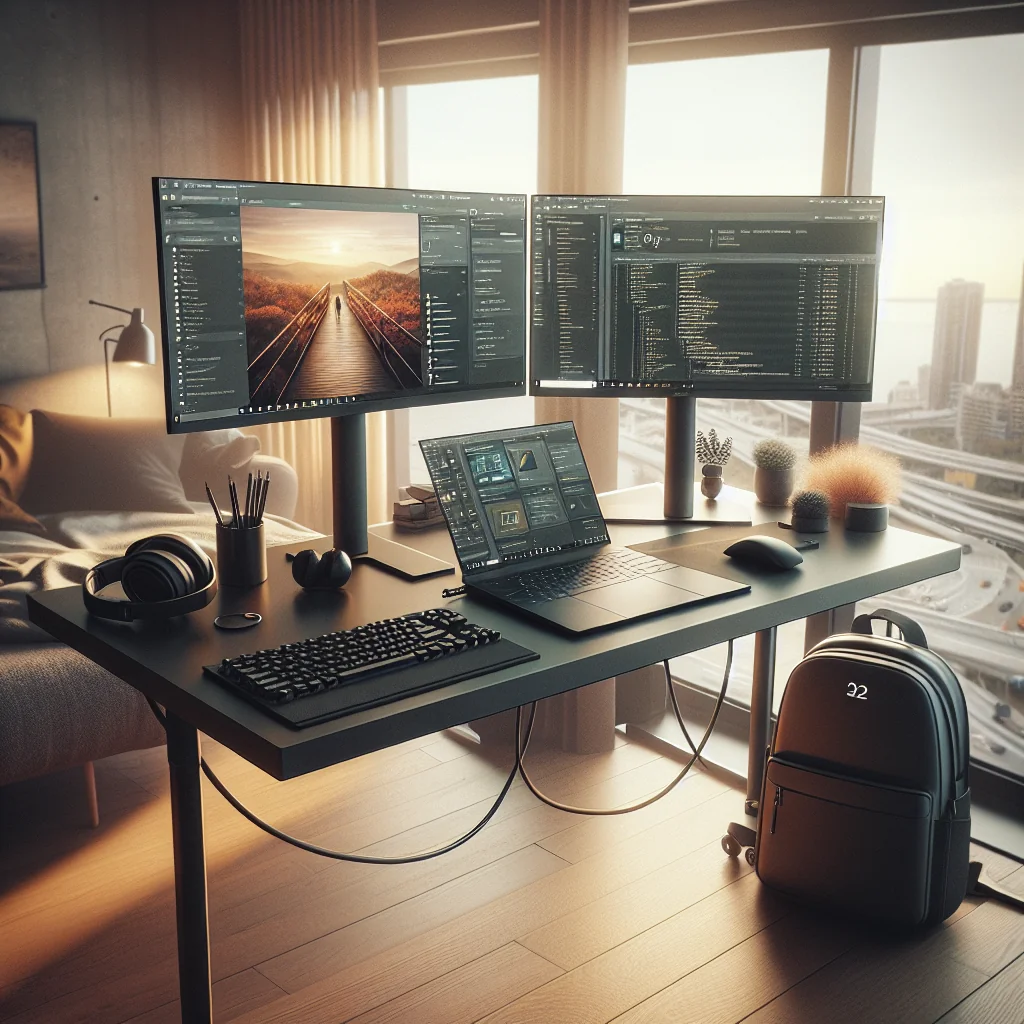
Two screens can boost productivity, but a poor dual monitor desk setup can strain your neck. The key is symmetry, height, and distance so you do not twist or crane your head all day.
Dual monitor layout for better posture
If you use both screens equally, center the gap between them directly in front of you. Angle each monitor slightly inward, like a shallow “V,” so you can see both with a small head turn, not a full neck twist. If one screen is primary, place that one directly in front of you and the secondary screen to the side at a slight angle.
The best monitor for remote work supports this layout. Look for height adjustability or mount support so you can raise the screens to eye level. A matte finish helps reduce glare, which stops you from leaning forward or squinting to see small text.
Laptop stands, external keyboards, and mice
Laptops alone are posture traps because the screen and keyboard are locked together. To improve posture while working remotely, separate them with a laptop stand and external input devices whenever you can.
The best laptop stand for a desk raises your screen so the top edge is near eye height. Choose a stable stand that can handle your laptop’s weight and folds flat for travel if you are a digital nomad. Even a simple riser or a stack of sturdy books is better than hunching over the table.
The best keyboard for typing all day has low, light keys and a layout that keeps your wrists straight. Many people prefer a slight negative tilt, where the front of the keyboard is higher than the back, to keep wrists neutral. Pair this with a mouse that fits your hand size so your fingers and forearm stay relaxed instead of pinched.
Lighting, Webcam Placement, and Video Call Comfort
Good lighting and camera placement are posture tools, not just visual upgrades. If you strain to see the screen or frame yourself on video, you will lean forward or crane your neck without noticing.
Lighting that reduces eye strain and slouching
The best lighting for video calls is soft, even light from in front of you, not behind. A small desk lamp with a diffused shade or an LED panel can brighten your face without glare. Place the light slightly above eye level to avoid harsh shadows under your eyes or chin and to keep your head in a neutral position.
Avoid strong overhead light that reflects off the screen. If you see glare, you may lean forward or tilt your head. Adjust blinds, move the lamp, or change your screen angle until you can sit upright and still see clearly.
Webcam height and distance for natural posture
The best webcam for remote meetings should mount at or near eye level. Use a tripod, monitor mount, or laptop stand so you are not looking down into the camera. Position the webcam so your head and upper torso fill the frame while you sit upright with your back against the chair.
Check your image at the start of each call. If you see a lot of ceiling or the camera looks up your nose, raise the camera. This simple change keeps your chin level and your neck in line with your spine.
Build a Quiet, Posture-Friendly Remote Workspace
Noise and distractions change how you sit. When you strain to hear or feel stressed, your shoulders creep up and your neck tenses. A quiet remote workspace supports both posture and focus, even in a small home or shared flat.
Simple sound control for better body position
Start with soft surfaces that absorb sound. A rug, curtains, and even fabric wall hangings can reduce echo. Place bookshelves or storage units along shared walls to block noise. If possible, choose a room with a door you can close for calls and deep work.
For home office soundproofing, focus on gaps. Use weatherstripping along the door edges and a draft stopper at the bottom. Add thick curtains over windows if street noise bothers you. If you share space, high-quality noise-isolating headphones can act as “portable sound control” and help you stay relaxed in your chair.
Essential Work From Home Gear and Digital Nomad Packing List
Remote work posture improves when you carry a small, consistent toolkit. You do not need a full office in your bag, but a few items can turn almost any space into a safer setup for your back and neck.
Core gear for posture-friendly remote work
Essential work from home gear for posture and comfort:
- Compact laptop stand or riser to raise the screen
- Lightweight external keyboard and mouse for neutral wrists
- Portable lumbar support cushion or inflatable pillow
- Noise-isolating headphones or earbuds
- Foldable laptop or monitor stand for dual-screen setups
- Reusable cable ties and a small pouch for chargers and adapters
- External webcam if your laptop camera is low or off-center
- Small LED video light or clip-on ring light
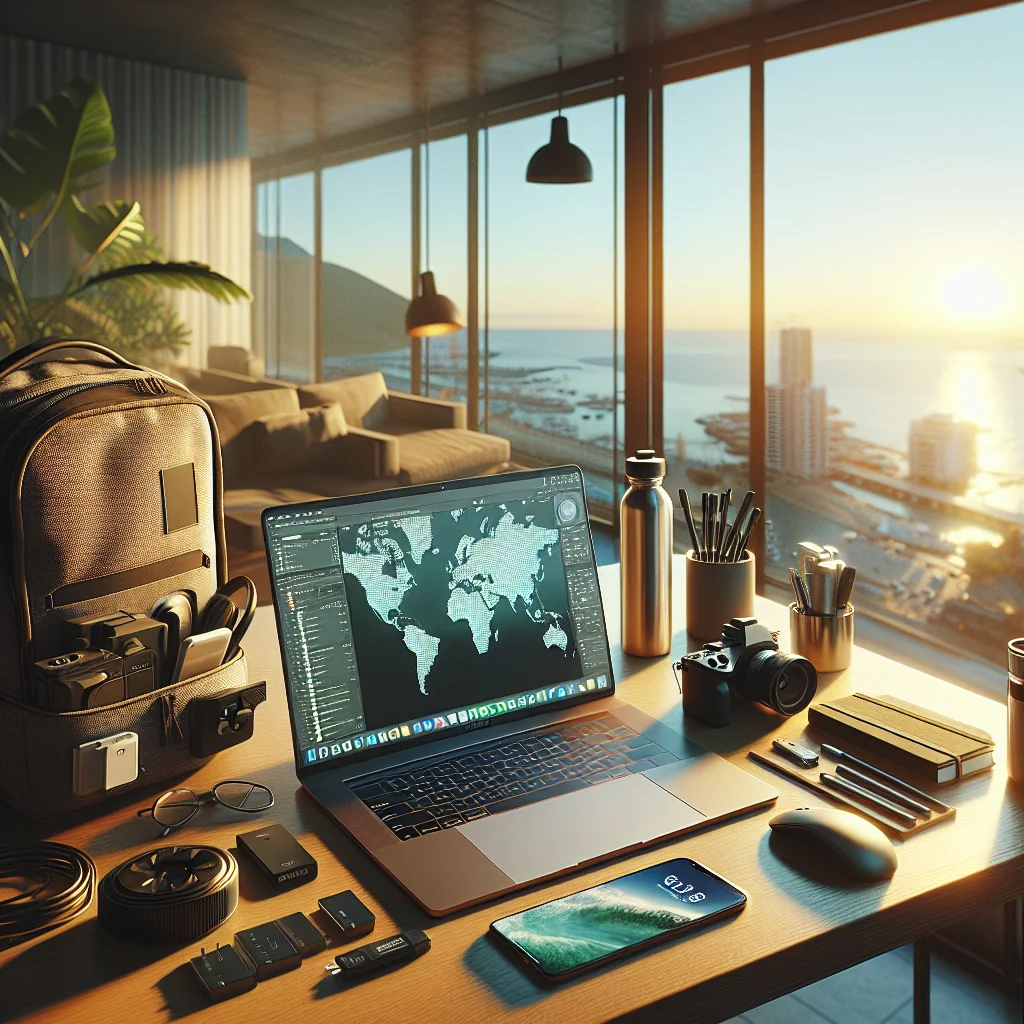
For a digital nomad packing list, add a compact power strip, international plug adapters, and a slim portable monitor if you rely on a dual monitor desk setup. With these tools, you can rebuild a safe posture almost anywhere, from an apartment rental to a coworking space.
Habits That Help You Work From Home Productively and Pain-Free
Productivity and posture support each other. When your body feels stable and relaxed, you can focus longer without fatigue or nagging aches that break your flow.
Movement breaks and daily posture check-ins
Use time blocks of 25–50 minutes of focused work, followed by short breaks. During breaks, stand up, walk, or stretch your chest and hip flexors. Drink water regularly; low fluid intake can add to headaches and muscle tension. Keep your most-used tools within easy reach so you are not twisting or leaning often.
Over days and weeks, these small choices add up. With the right chair, desk, screens, and travel gear, you can improve posture while working remotely and protect your body while you build your digital nomad lifestyle or long-term home office routine.